Goodnotes Hyperlinks Not Working? 7 Fixes That Usually Solve It
 Published
Updated
On this page
- Which Fix Matches Your Problem?
- Fix 1: Use the Right Tap for Your Device
- Fix 2: Switch to Read Only Mode When a Tap Draws a Stroke
- Fix 3: Touch and Hold the Link, Then Select Open Link
- Fix 4: Test the Original PDF in Another Viewer
- Fix 5: Re-Import the Original Download
- Fix 6: Export With the Editable PDF Format
- Fix 7: Update Goodnotes, Then Contact Support With the File
When Goodnotes hyperlinks are not working, the cause is usually one of three things: the way you tap the link on your device, a setting that turns taps into pen strokes, or a copy of the planner that lost its links during export or flattening. Testing the original PDF in another viewer tells you which one you have.
A hyperlinked planner depends on its tabs. When tapping “March” draws a dot instead of jumping to March, the whole file feels broken, and it is tempting to assume the planner itself is faulty. Most of the time it is not. The seven fixes below start with the quickest checks and end with the ones that need a fresh import or a message to Goodnotes Support.
Every step here comes from the Goodnotes support center. Where Goodnotes works differently on iPad, Android, Windows and the web, the difference is spelled out.
Which Fix Matches Your Problem? #
Contents ↑Use the symptom you see to jump to the right fix. If nothing matches, work through them in order.
Symptoms and Likely Causes
The table maps common symptoms to the fix that addresses them:
| What happens | Likely cause | Start with |
|---|---|---|
| Nothing happens on Android, Windows or web | Still in Edit Mode | Fix 1 |
| Tapping a tab draws a line or dot | A writing tool is catching the tap | Fix 2 or Fix 3 |
| No link works anywhere in the file | The PDF has no working links | Fix 4 |
| Links worked, then stopped after export or sharing | Flattened copy | Fix 5 and Fix 6 |
| Links work in other apps but not in Goodnotes | App or system issue | Fix 7 |
Fix 1: Use the Right Tap for Your Device #
Contents ↑Goodnotes does not handle PDF links the same way on every platform. According to the Goodnotes article on opening hyperlinks in imported PDFs, on iOS and iPadOS you simply select the linked text, image or planner element. On Android, Windows and the web, you first enter Read Only Mode and then select the link.

If you plan on an Android tablet or a Windows laptop, check this first. The links may be fine; the app is waiting for you to leave Edit Mode. Goodnotes confirms on its page of frequently requested features for Android, Windows and Web that hyperlinks in planners are available on all three.
If you split your planning between an iPad and another device, it helps to know that the iPad habit (tap and go) will not carry over directly. Our guide to using a digital planner on Android covers the Android side in more detail.
Fix 2: Switch to Read Only Mode When a Tap Draws a Stroke #
Contents ↑On iPad, a link can still fail if the Pen or Highlighter is active and your tap registers as ink. The Goodnotes guide to Read Only Mode addresses this directly: if tapping a link draws a stroke instead of opening it, switch to Read Only Mode, where internal and external links open with one selection and nothing gets written on the page.
- Open the planner.
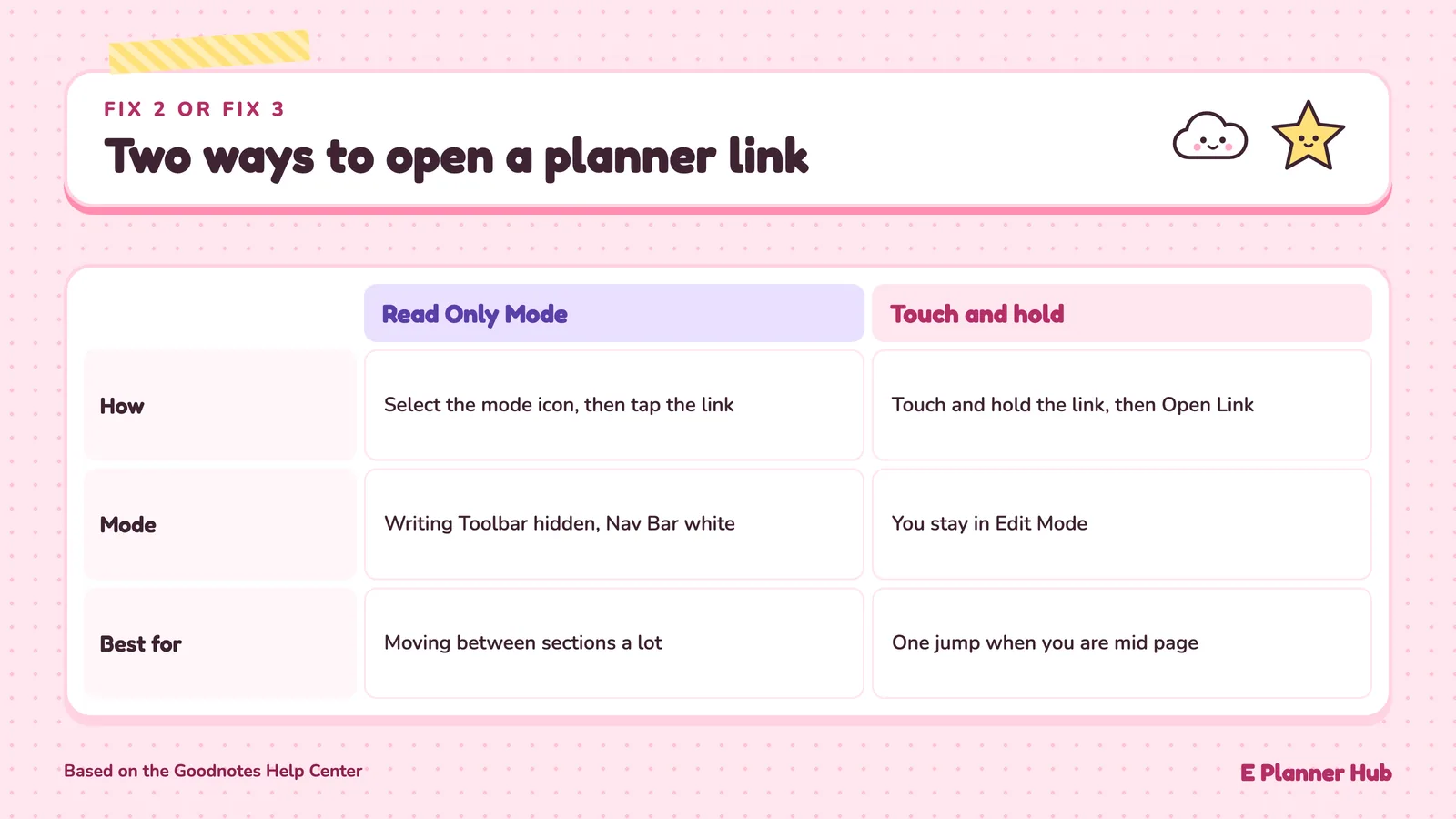
- Select the Read Only Mode icon in the Nav Bar. The Nav Bar turns white and the Writing Toolbar is hidden.
- Tap your tabs and index links.
- Select the mode icon again to return to Edit Mode. The Nav Bar turns blue and the toolbar comes back.
💡 Pro Tip
Use Read Only Mode as a “travel mode”: jump to the page you need, switch back to Edit Mode, write, and switch again when you want to move on. Watching the Nav Bar color (white for reading, blue for editing) is the fastest way to know which mode you are in before you tap.
Fix 3: Touch and Hold the Link, Then Select Open Link #
Contents ↑If you would rather stay in Edit Mode, Goodnotes gives you a second route. The support article on opening hyperlinks in an imported PDF lists two methods: touch and hold the hyperlink and then select Open Link, or switch to Read Only Mode and select the link.
Touch and hold is handy when you are mid page and only need one jump, for example from a daily page back to the monthly index. It is slower for repeated navigation, so if you move between sections a lot, Fix 2 will feel better day to day.
Fix 4: Test the Original PDF in Another Viewer #
Contents ↑Before changing anything else, find out whether the links exist at all. Goodnotes’ own troubleshooting step is to open the original PDF in another PDF viewer and test the same hyperlink. If it fails there too, the PDF might not contain a working link. If it works elsewhere but not in Goodnotes, the problem is on the Goodnotes side (see Fix 7).
📐 Technical Note
In the PDF standard, ISO 32000-1:2008 (section 12.5.6.5), a hyperlink is a link annotation: an object tied to a location on the page that leads to a destination elsewhere in the document or to an action. It is separate from the printed artwork of the tab. That is why a tab can look perfect and still do nothing; the drawing survived, but the annotation on top of it did not.
Test at least three links: one from the index, one side tab and one “back to home” button. If most links work and one does not, that single tab is a file problem rather than an app problem, and the planner maker is the person to tell.
Fix 5: Re-Import the Original Download #
Contents ↑If the links work in another viewer but not in your Goodnotes copy, the copy is the problem. Several everyday actions produce a version without links:
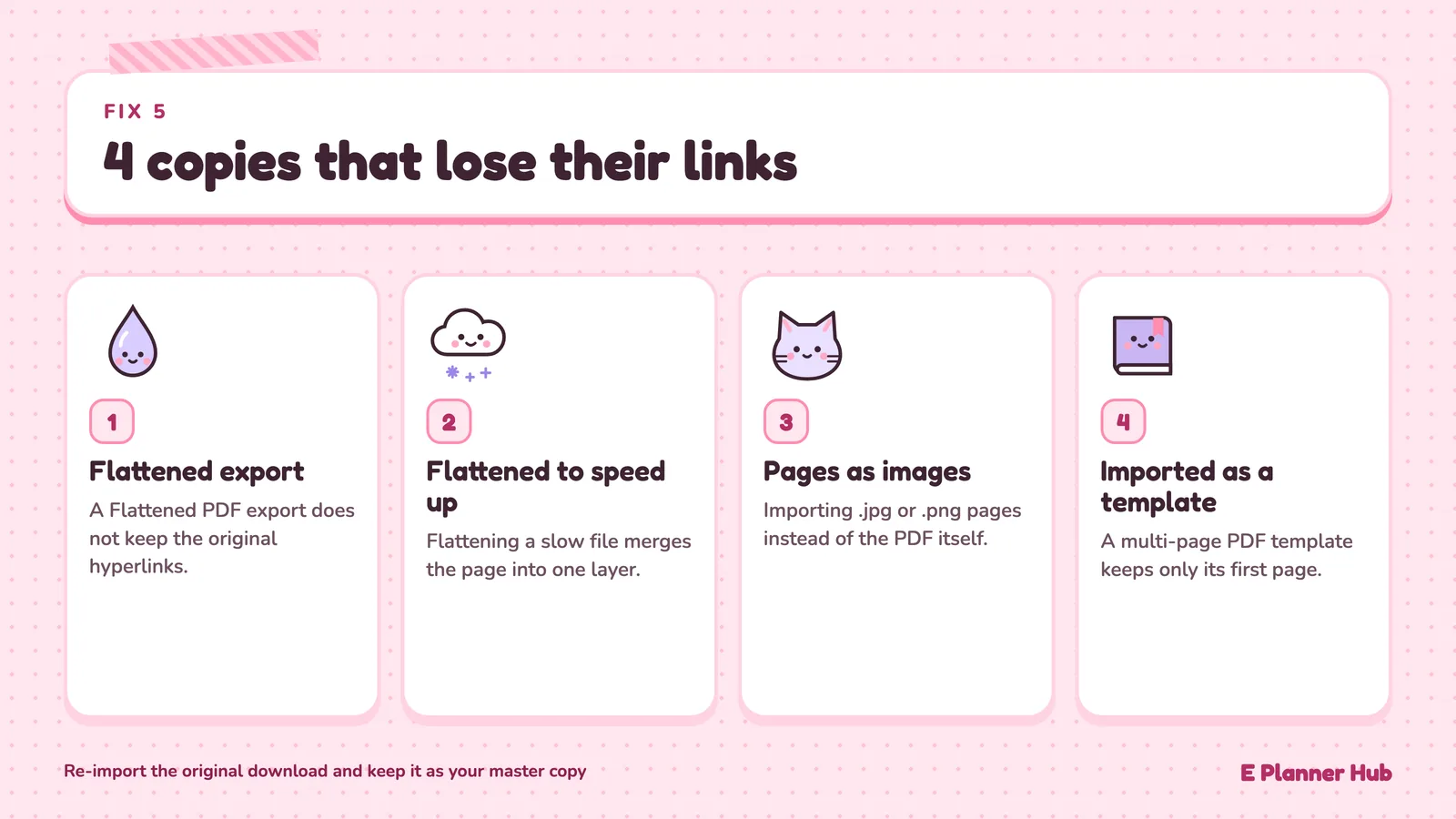
- A Flattened PDF export. Goodnotes’ comparison of Editable and Flattened PDF export states that a flattened export does not preserve original PDF hyperlinks.
- A flattened or image-based version made to speed up a slow file. Goodnotes suggests this for PDFs that render slowly, but flattening merges the page into one layer.
- Pages imported as images (.jpg or .png) instead of the PDF itself.
- A planner imported through Manage Notebook Templates. A multi-page PDF imported as a template keeps only its first page.
Go back to the file you downloaded, then in Goodnotes select + New, then Import, choose the PDF and select Open. Keep that untouched copy as your master and plan in a duplicate.
⚠️ Common Mistake to Avoid
Flattening a large planner to make it scroll faster. It may help performance, but a flattened PDF loses its original hyperlinks, so you trade lag for dead tabs. If a big planner is slow, try a fresh import of the original first, and keep an unflattened master copy whatever you do.
Fix 6: Export With the Editable PDF Format #
Contents ↑This fix applies when links stop working after you move a planner, for example exporting it from Goodnotes to back it up, open it in another app or send it to your own second device. The Goodnotes article on missing PDF outlines and hyperlinks after export gives the steps:
- Open the document’s Export Options.
- Set PDF Data Format to Editable.
- Export the document again.
The same article draws a useful line. This only matters for links that were already in the PDF before you imported it. Links you create yourself inside Goodnotes stay clickable even in a Flattened export. The trade-off of Editable is that handwriting is not searchable in the exported file, while Flattened can include searchable handwriting when Enable Handwriting Recognition is turned on.
If you are still choosing an app partly on how it handles planner links, our Goodnotes vs Notability comparison looks at how each app handles a hyperlinked PDF.
Fix 7: Update Goodnotes, Then Contact Support With the File #
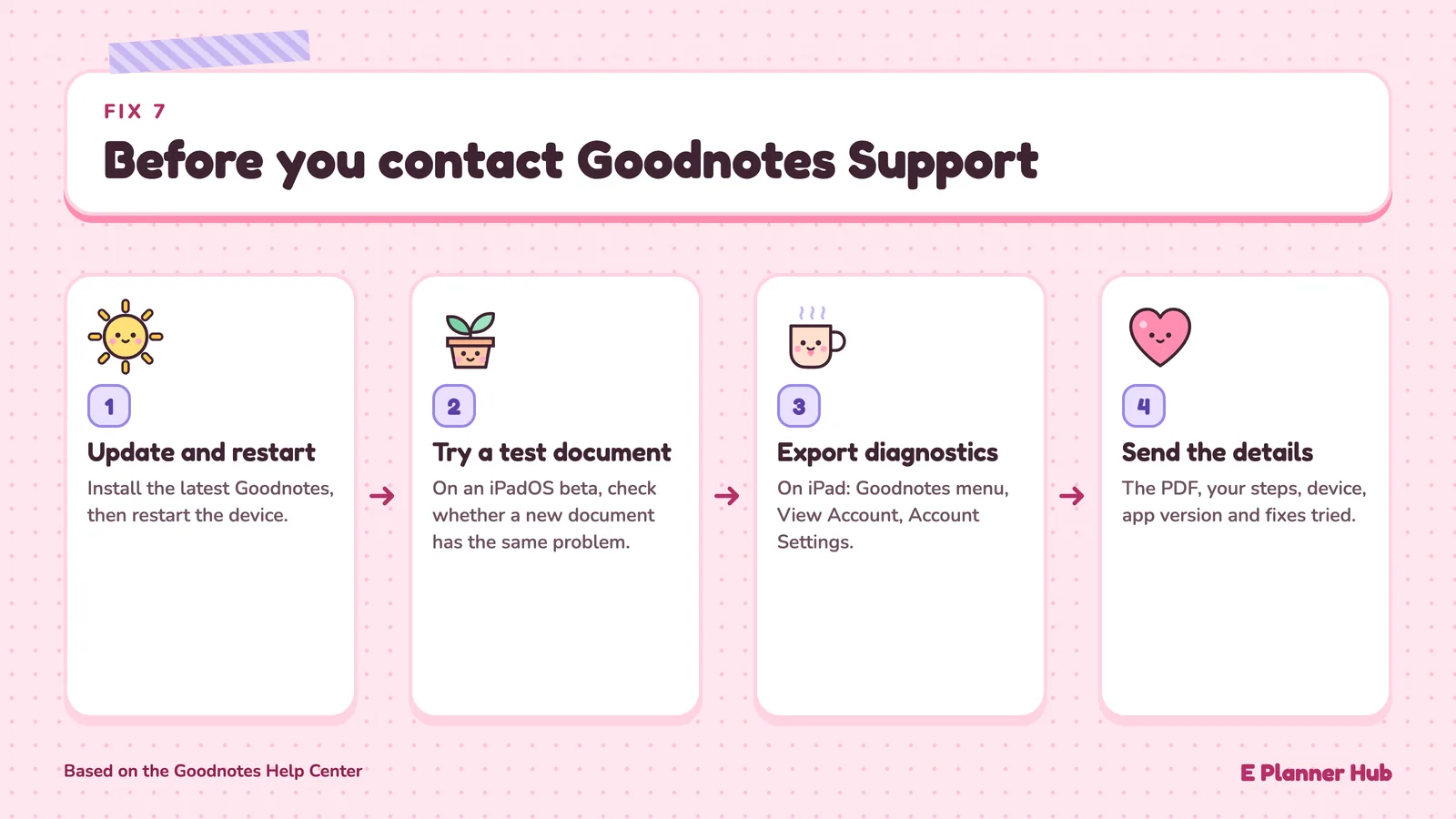
Contents ↑When the original PDF works in another viewer, you are using the right tap, and a fresh import still fails, the remaining causes sit with the app or the operating system. Update Goodnotes to the latest version from your app store and restart the device. If you run a prerelease iPadOS, the Goodnotes page on using Goodnotes with an iPadOS beta notes that the app may be less stable on a beta and suggests checking whether the problem also occurs in a new test document.
If the issue continues, Goodnotes asks you to contact Goodnotes Support and include the affected PDF and the steps you followed. On iPad you can also attach diagnostic data: open the Goodnotes menu, select View Account, then Account Settings, and choose Export Diagnostic Data. A short note listing your device, the Goodnotes version and which of the fixes above you already tried saves a round of back and forth.
While you wait, the Open Link method in Fix 3 may still get you around, and if the planner came with a PDF outline, the Outline tab in the Goodnotes Sidebar lists its sections. If the file came from a shop, the seller can also confirm whether every tab was meant to be linked. For background on how planner links are built, see our explainer on how hyperlinked planner tabs work.
Features vary by app version and device. Check the Goodnotes support center for your setup if a menu name differs from the one shown here.