Does Goodnotes Have Planner Templates? Built-In Options vs PDF Planners
 Published
Updated
On this page
- What Counts as a Template in Goodnotes?
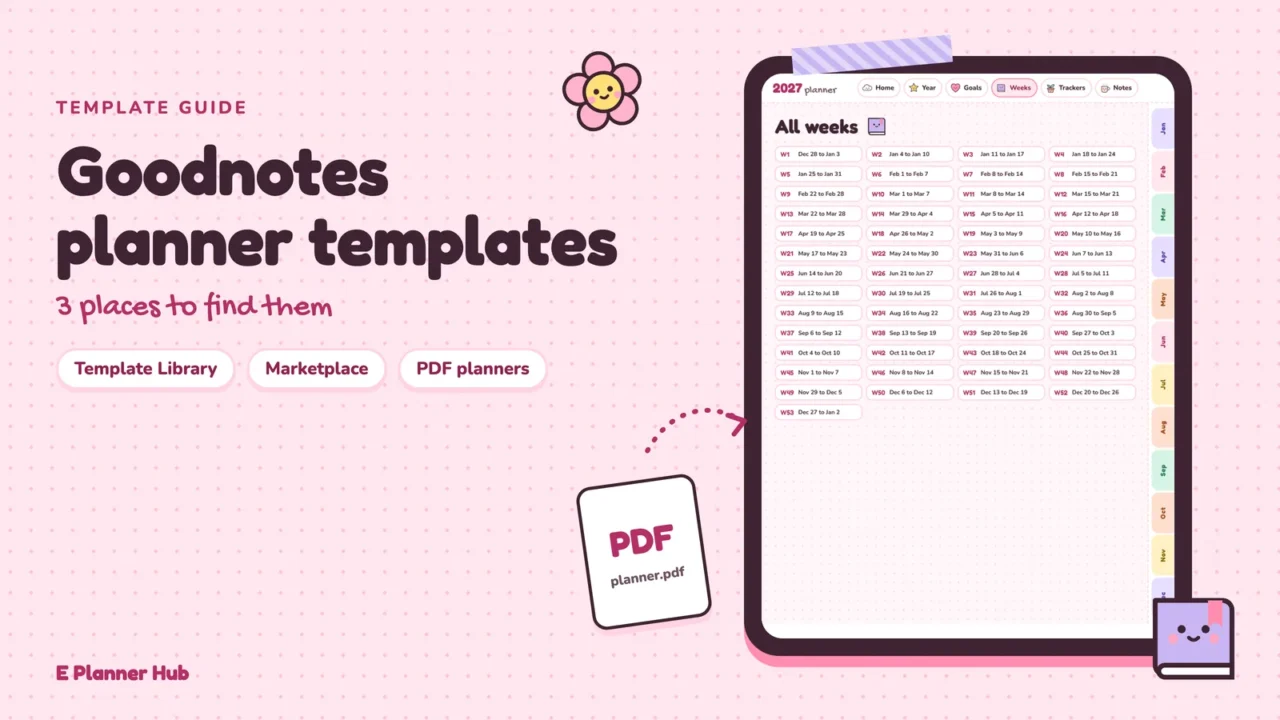
- The Three Sources of Goodnotes Planner Templates
- Built-In Templates vs PDF Planners: The Practical Difference
- Why You Should Not Import a Planner as a Template
- Which Goodnotes Planner Templates Work on Android, Windows and the Web?
- How to Choose Between a Template and a Full Planner
- The Bigger Picture
Goodnotes planner templates come from three places: the built-in Template Library of single paper and cover designs, the Goodnotes Marketplace with ready-made planners from Goodnotes and third-party creators, and PDF planners you import yourself. Only full PDF planners and Marketplace planners give you linked tabs across a whole year.
The question sounds simple, and the short answer is yes. The longer answer matters more, because “template” means two very different things in Goodnotes. One is a single page design, such as a lined or grid page, that Goodnotes repeats every time you add a page. The other is a complete planner: hundreds of dated pages connected by tappable tabs.
Mixing the two up is the source of a lot of frustration. People import a planner as a template and lose every page but the first, or they expect a paper template to jump to March when they tap a tab. This article explains what each option is, where it lives in the app and what it can and cannot do, using Goodnotes’ own help pages as the reference.
What Counts as a Template in Goodnotes? #
Contents ↑In Goodnotes, a template is a single page design attached to a notebook. When you create a notebook, the Template Library asks you to pick a paper size, color, orientation, cover and paper template. Every new page you add to that notebook uses the chosen paper unless you change it.
A template, in this sense, is one page. It has no dates, no tabs and no links between pages. It is closer to a pad of printed paper than to a planner. That is why the answer to “does Goodnotes have planner templates?” depends on whether you mean a planner-style page or a full planner.
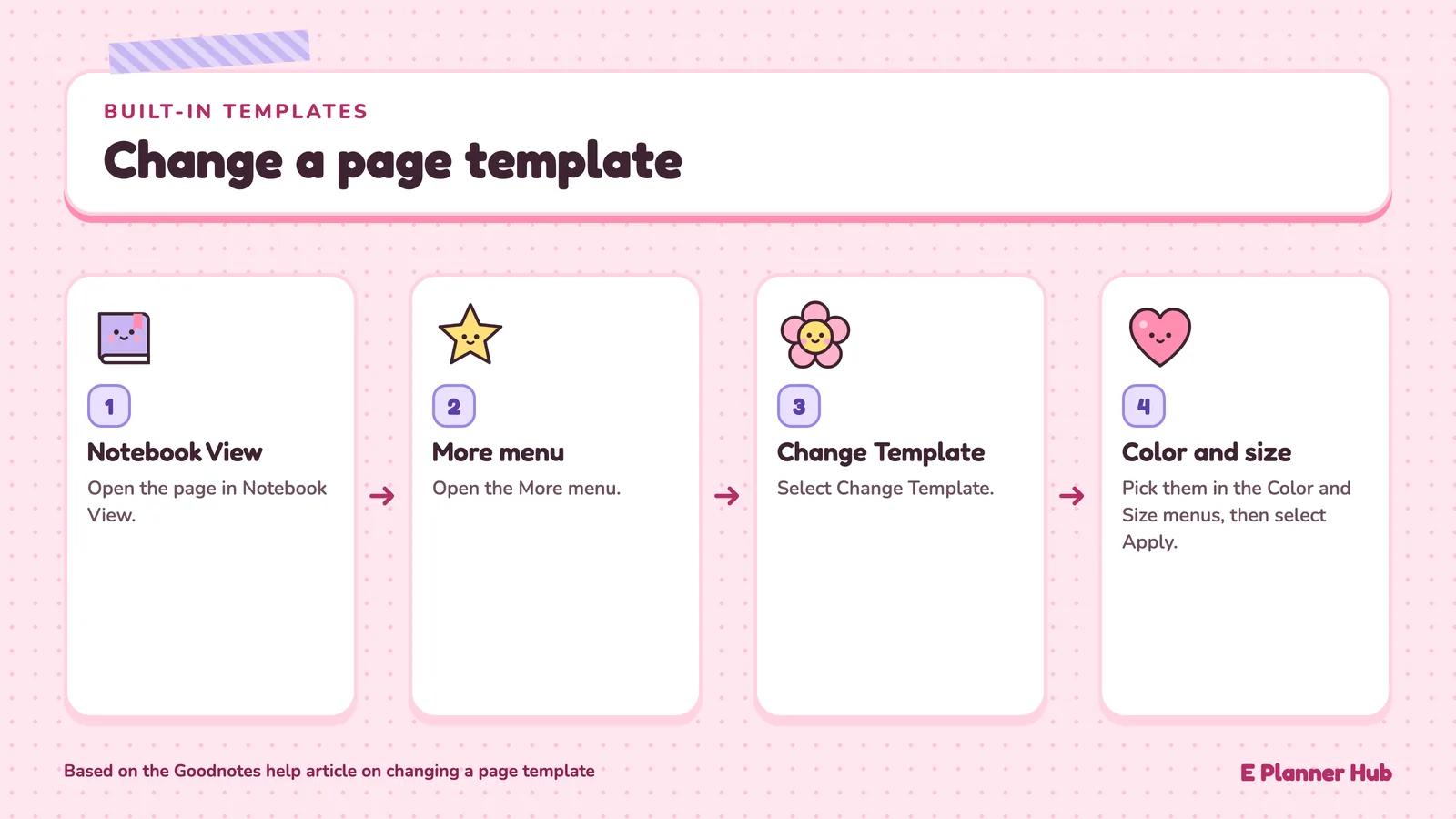
Goodnotes’ help article on changing a page template describes the controls: open the page in Notebook View, open the More menu, select “Change Template”, then use the Color and Size menus and select Apply. You can change the paper, its color, the page size and the orientation. Nothing in that list adds structure across pages, which is the job a planner does.
The Three Sources of Goodnotes Planner Templates #
Contents ↑Here is where planner pages can come from, from the simplest to the most complete.
1. The built-in Template Library
The Template Library is what you see when you create a new notebook. It holds Goodnotes’ default covers and papers, organized by size, color and orientation. These are good for a running notes notebook or a simple daily log where you write the date yourself.
There is a plan limit to know about. Goodnotes’ plan comparison article lists “templates and digital stationery” among the things not included in Goodnotes Free, and lists them as included in Goodnotes Essential. If you are on the free plan and the template options look sparse, that is the reason.
2. The Goodnotes Marketplace
The Marketplace is a store inside the app. Goodnotes’ article on buying and downloading Marketplace content says it offers planners, paper templates, covers, stickers and other content from third-party creators. You open it from the Goodnotes Sidebar, and after you get an item, Goodnotes adds it to Documents View, an Elements collection or the Template Library, depending on what the item is.
That last detail answers a common question. A Marketplace planner arrives as a document, ready to use, while a Marketplace paper arrives in the Template Library. Goodnotes’ own blog post on digital planners, published in December 2025 by the Goodnotes Content Team, describes the Marketplace as having “hundreds of planners, stickers, and templates”.
Before you buy anything there, Goodnotes advises checking each item’s compatibility description to confirm that it works with your device.
🏗️ Real-World Example
Daily Planner 2026-2027 (Goodnotes, 2026-2027 edition): Goodnotes’ own Marketplace planner comes in Monday-start and Sunday-start versions. According to Goodnotes’ calendar sync article, Goodnotes Pro users on Apple devices can connect a Google Calendar and see their primary calendar’s events on the matching planner pages. The feature is experimental, read-only, US English only for now, and rolling out in phases.
3. PDF planners you import
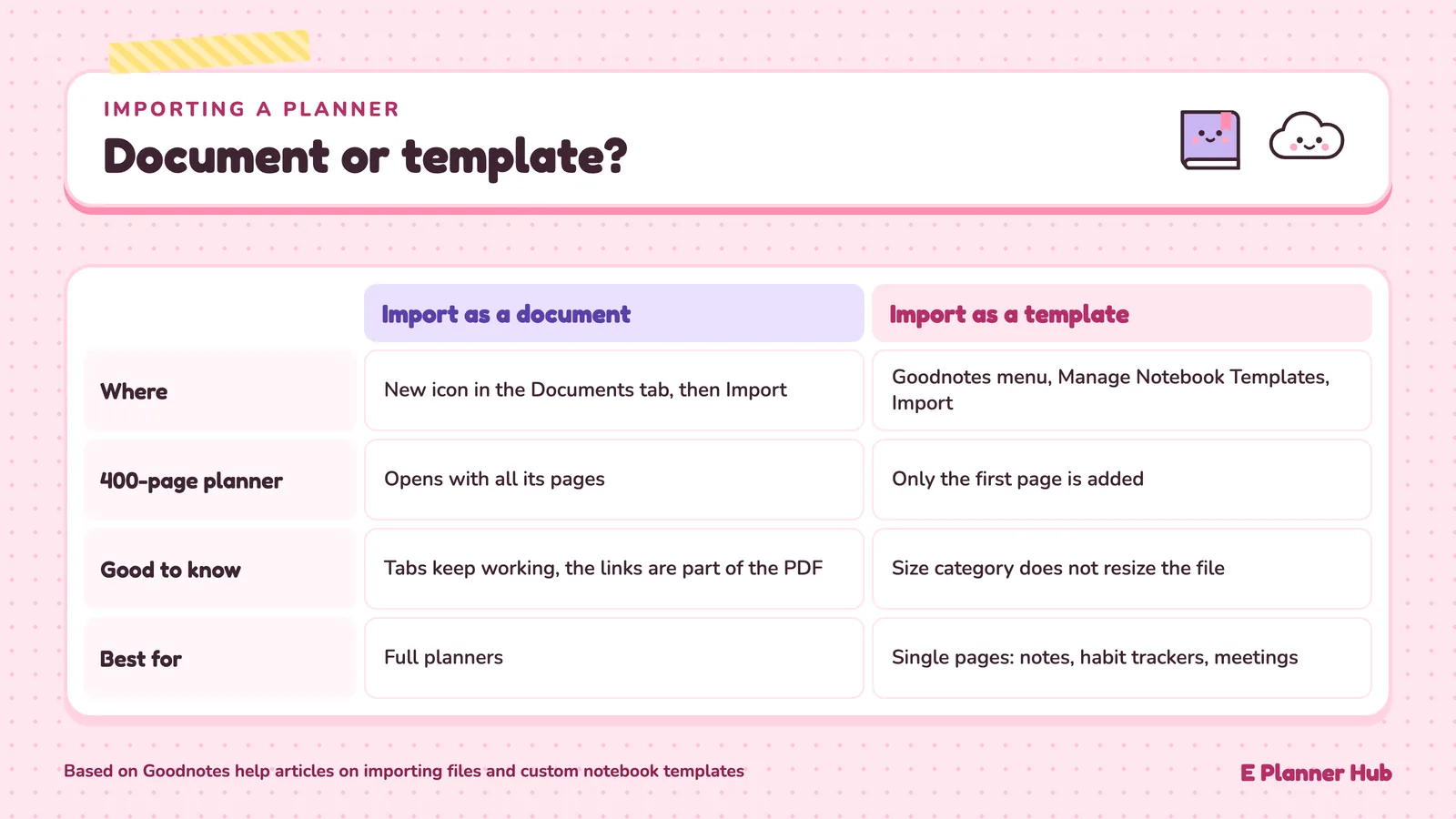
The third source is any hyperlinked PDF planner bought or downloaded outside the app. Goodnotes’ article on importing files lists PDF as a supported format on every platform. You tap the New icon in the Documents tab, choose Import, and select the file. The planner opens as a document with all its pages, and its tabs keep working because the links are part of the PDF.
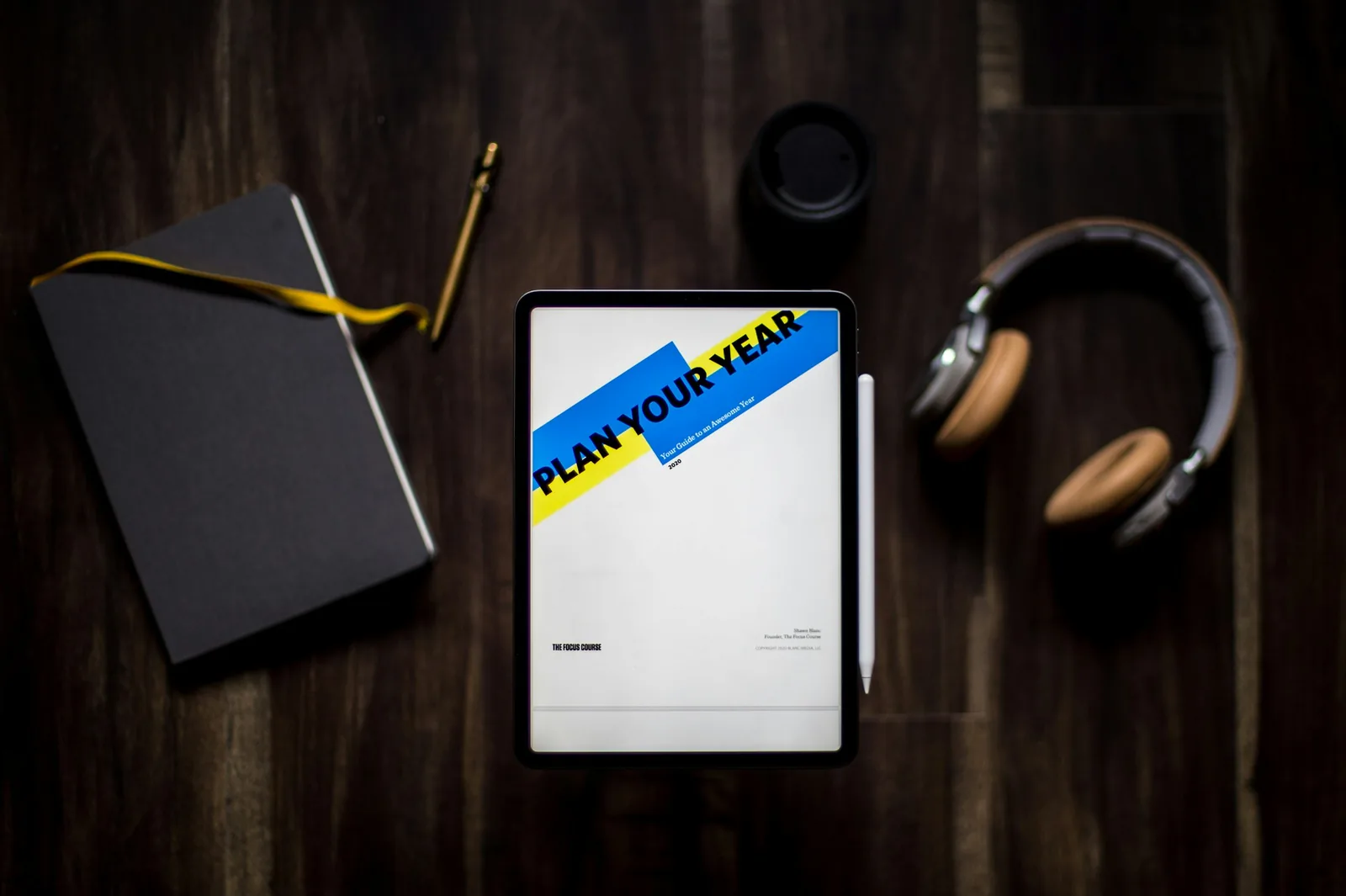
This is the route most planner users take, because it gives you the widest choice of layouts and a file you own outside the app. If you are new to PDF planners, our explainer on how hyperlinked planner tabs work shows what the links inside the file do.
Built-In Templates vs PDF Planners: The Practical Difference #
Contents ↑The difference comes down to links. A PDF planner carries its own links, so tapping “March” in the side tab takes you to March. Goodnotes’ article on opening hyperlinks in imported PDFs spells out the rule: a link opens only if it already exists in the imported PDF. Goodnotes does not add planner links to a template page for you.
A built-in paper template has no such links. You can still build structure yourself with bookmarks, outlines and links you create in Goodnotes, but you are assembling a planner by hand rather than starting with one.
So the rule of thumb is simple. Use built-in templates for notebooks that grow page by page: meeting notes, a journal, class notes. Use a PDF or Marketplace planner for anything organized by date, where you want to jump between years, months, weeks and days.
Why You Should Not Import a Planner as a Template #
Contents ↑Goodnotes lets you add your own PDF or image as a custom cover or paper template, through Goodnotes menu, then Manage Notebook Templates, then Import. It is tempting to use this for a planner. It does not work the way people expect.
🎓 Expert Insight
“If you import a multi-page PDF as a template, only its first page is added.”, Goodnotes Help Center, Goodnotes
This line from Goodnotes’ article on custom notebook templates explains most “my planner disappeared” problems. A 400-page planner imported this way becomes a single page, so import planners as documents and keep the template importer for single pages.
The same article, import and manage custom notebook templates, adds that the selected size category does not resize the imported file, so a template made for a different page size may sit oddly on the page. For the clearest result, it recommends a PDF with the intended page dimensions.
There is a sensible use for the importer in a planner workflow, though. If your planner includes a page you want more of, such as a blank notes page, a habit tracker or a meeting template, you can turn that single page into a template and add copies whenever you need them.
💡 Pro Tip
To turn a favorite planner page into a reusable paper template, open the blank page and choose Share and Export, then Export This Page, then PDF with the Flattened type, as Goodnotes’ template article describes. Import that PDF under Manage Notebook Templates. Flattening removes the page’s links, so use it for note pages and trackers, not for index or tab pages you use to jump around the planner.
Which Goodnotes Planner Templates Work on Android, Windows and the Web? #
Contents ↑Goodnotes runs on Android, Windows and the web as well as Apple devices, and templates behave slightly differently there. Goodnotes’ FAQ for those platforms says they can use notebooks created from Dynamic Templates on Apple devices, but creating custom template sizes or themes is currently Apple-only. Custom PDF and image templates can be imported through Manage Notebook Templates where supported.
For PDF planners, the news is better. Goodnotes’ FAQ on frequently requested features confirms that hyperlinks in planners work on Android, Windows and the web. The extra step is that you enter Read Only Mode before tapping a link, or press and hold the link in Edit Mode and choose “Open Link”.
The calendar overlay in Goodnotes’ own planner is a different story: Goodnotes lists it as Pro-only on Apple platforms.
📌 Did You Know?
If you export a planner from Goodnotes as a Flattened PDF, the links and outline that came with the original PDF stop working. Goodnotes’ help article on missing outlines and hyperlinks says to set PDF Data Format to Editable in the export options if you want them kept.
How to Choose Between a Template and a Full Planner #
Contents ↑Start from how you plan, not from what looks nicest in a preview.
If you write a few lines a day and do not care about jumping to a specific date, a built-in lined or dotted template in a notebook called “Daily log” is enough. You add a page each morning and write the date at the top. Nothing to buy, nothing to learn.
If you plan by week and month, check deadlines weeks ahead, or keep separate sections for goals, habits and notes, you want a full hyperlinked planner. That is where the tabs earn their place. Our digital planners are hyperlinked PDFs of this kind, and they import into Goodnotes as documents rather than templates.
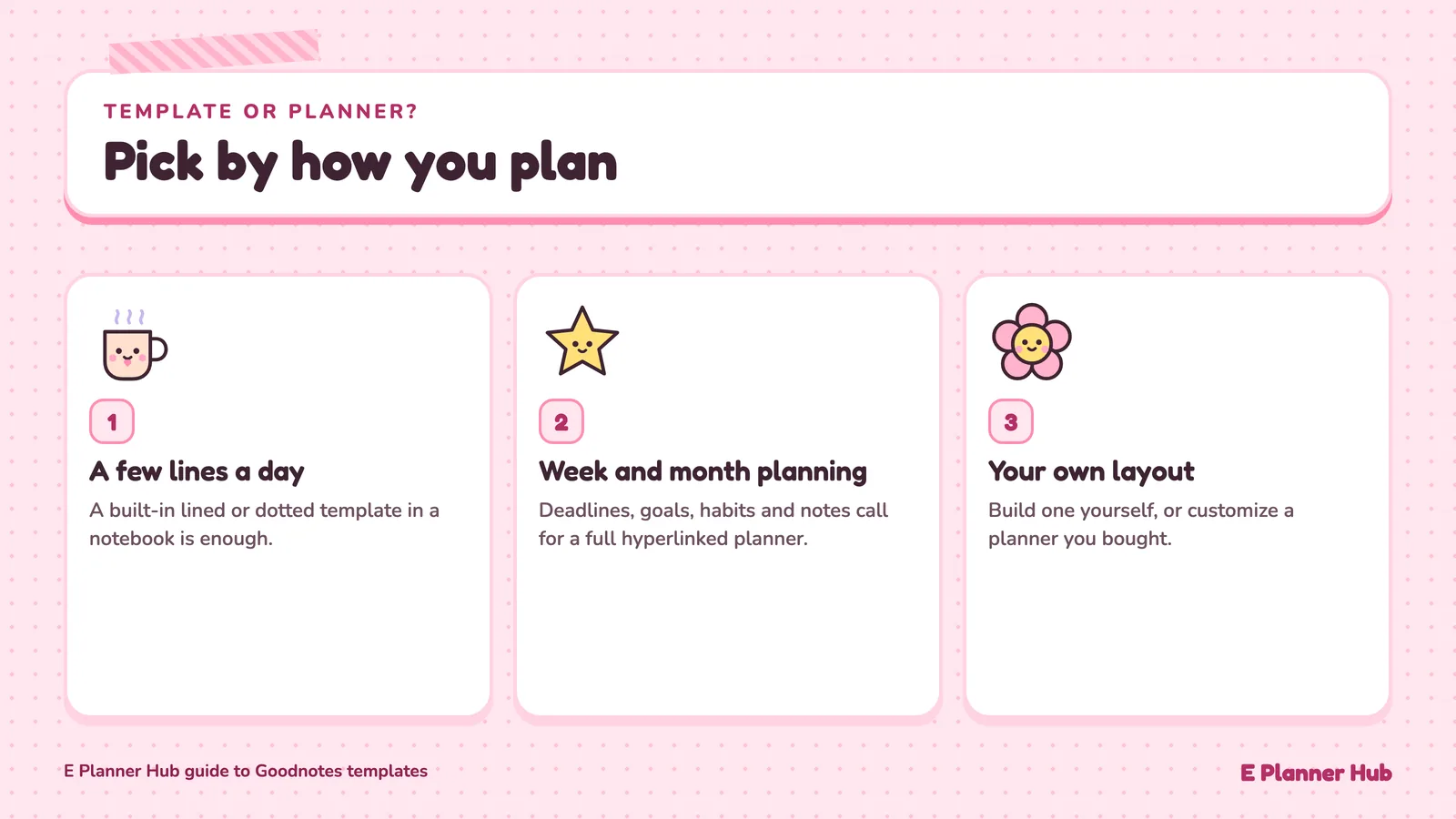
If you like the idea of a planner but want your own layout, you can also build one. Exported as a PDF, it imports the same way as a bought planner.
And if you are not set on Goodnotes yet, our Goodnotes vs Notability comparison looks at the main alternative for planners.
The Bigger Picture #
Contents ↑For anyone moving from paper, the Goodnotes template question is really a question about structure. A template gives you paper; a planner gives you a map of the year. Goodnotes is good at both, as long as each one goes through the right door: single pages into the Template Library, full planners in as documents. Get that one decision right and most of the problems people search for later, from vanished pages to dead tabs, never come up.