Do You Need an Apple Pencil for a Digital Planner?
 Published
Updated
On this page
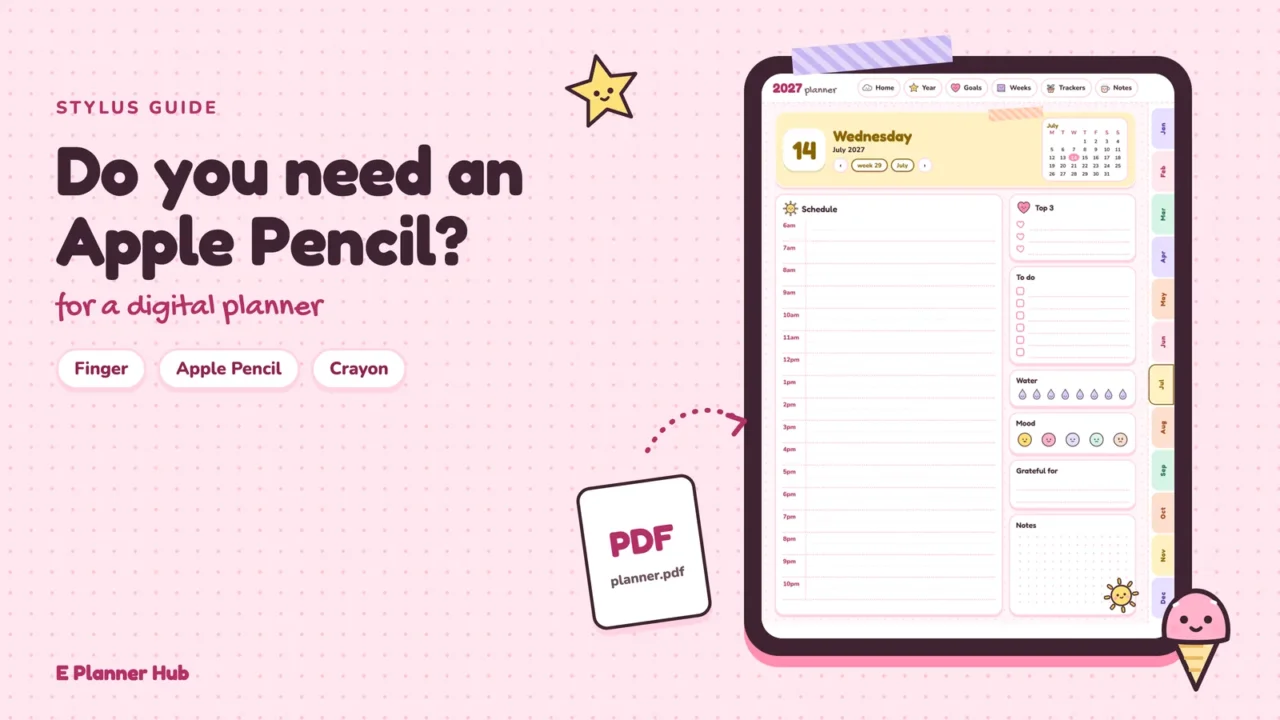
No, you do not need an Apple Pencil for digital planner use. Goodnotes and Notability both accept finger input, hyperlinked tabs open with a tap, and you can type instead of write. An Apple Pencil for digital planner pages mainly improves handwriting: built-in palm rejection, finer strokes and pressure-sensitive ink on supported models.
The question usually comes up right after buying an iPad or a PDF planner. The honest answer depends on how you fill your pages. If you mostly tap through tabs, tick boxes and type short notes, your finger and the on-screen keyboard cover nearly everything. If you write a daily page by hand, the difference between a fingertip and a proper stylus shows up within a week.
What Changes When You Plan Without a Stylus? #
Contents ↑Very little changes for moving around a planner, and a lot changes for handwriting. A hyperlinked PDF planner is a document with tappable areas, so the tabs do not care whether a fingertip or a pencil touches them. The friction appears when you write small text inside a narrow weekly box.
Tapping tabs and hyperlinks with a finger
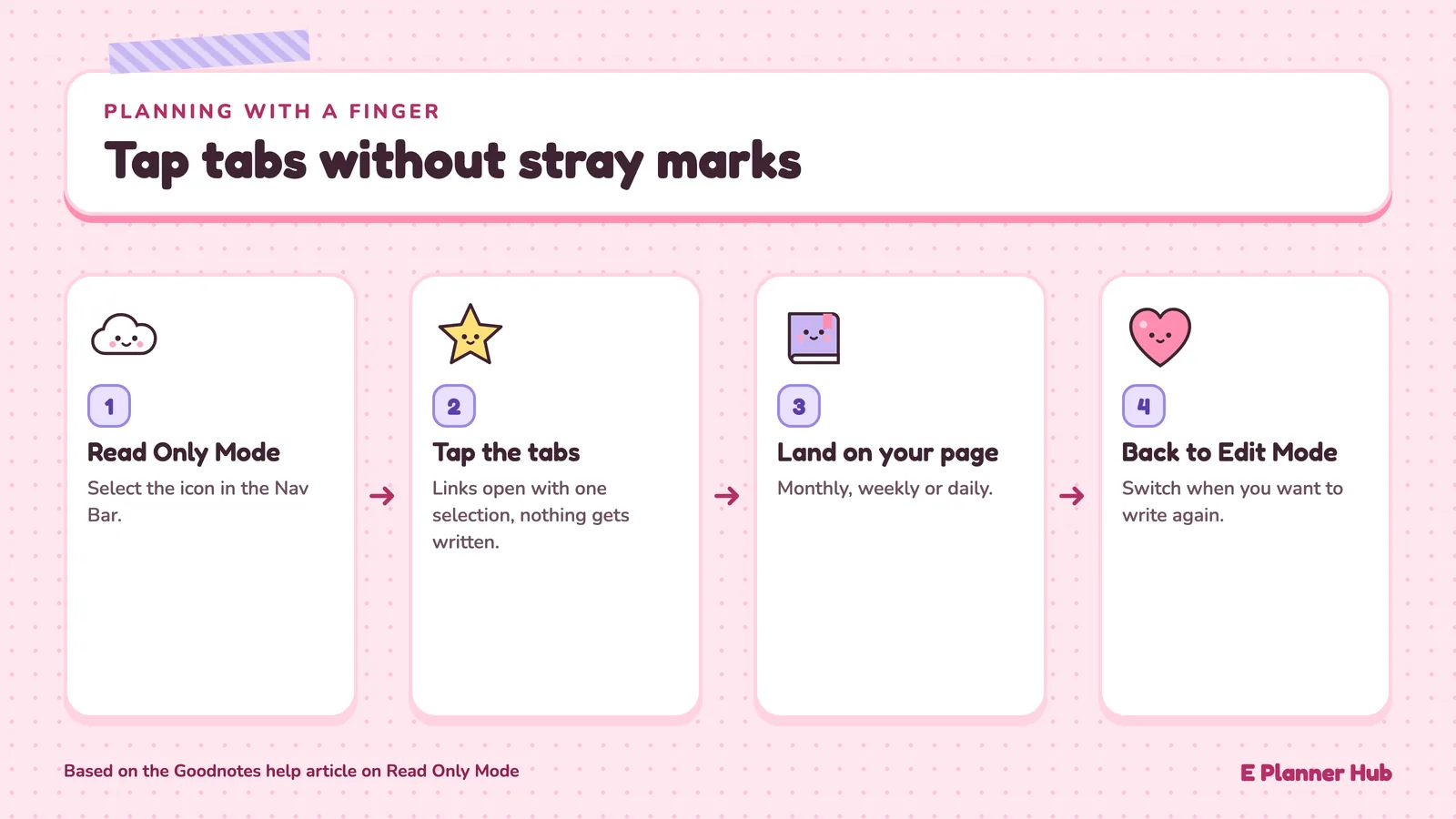
In Goodnotes on iPad, you open a link in an imported PDF by selecting the linked text, image or planner element. There is one catch for finger users. When your finger is set to draw, a tap on a tab can leave a small stroke instead of jumping to the page. Goodnotes covers this in its Read Only Mode help article: switch to Read Only Mode with the icon in the Nav Bar, and links open with one selection without any risk of writing on the page. Switch back to Edit Mode when you want to write again.
This makes a simple routine for finger planners: Read Only Mode for moving between monthly, weekly and daily pages, Edit Mode once you land on the page you want to fill in. If you are new to hyperlinked tabs on a tablet, our guide to how planner tabs work explains what each tap does.
Typing instead of handwriting
Typing is the most reliable option when you have no stylus. In Goodnotes, the Text Tool lets you tap anywhere on the page and type into a movable text box, and you can save a text style as the default so every entry matches. A paired keyboard makes this faster, but the on-screen keyboard works for short entries such as appointment times and task names.
Typed entries have a quiet advantage: a text box is easy to move when a plan shifts from Tuesday to Thursday. The trade-off is feel, and missing the act of writing is often the real reason people start looking at a stylus.
Handwriting with a finger or a basic stylus
Goodnotes states that its Pen tool works with a stylus or your finger, so finger handwriting is a supported way to use the app, not a workaround. What you lose is control. A fingertip covers far more of the screen than a pencil tip, so letters come out larger and you end up zooming in to fit text into small boxes.
Palm rejection is the other gap. According to the Goodnotes guide to configuring palm rejection, you only need to set it up if you write with your fingers or a non-Bluetooth capacitive stylus, because Apple Pencil and Logitech Crayon have palm rejection built in. In Document View, open the More menu (…) in the top-right corner, select Stylus & Palm Rejection, then choose your writing posture and a sensitivity level under Palm Rejection. Goodnotes recommends Low; its High level rejects anything not detected as a stylus tip, the wrong choice if your finger is the pen.
What an Apple Pencil Actually Adds to a Planner #
Contents ↑The main gain is palm rejection that needs no setup. You can rest your hand on the glass and write the way you would on paper, which matters more over a full daily page than any other feature. Apple describes the Pencil on its Apple Pencil page as offering pixel-perfect precision, low latency and tilt sensitivity across its current models, and those three are what make small handwriting legible.
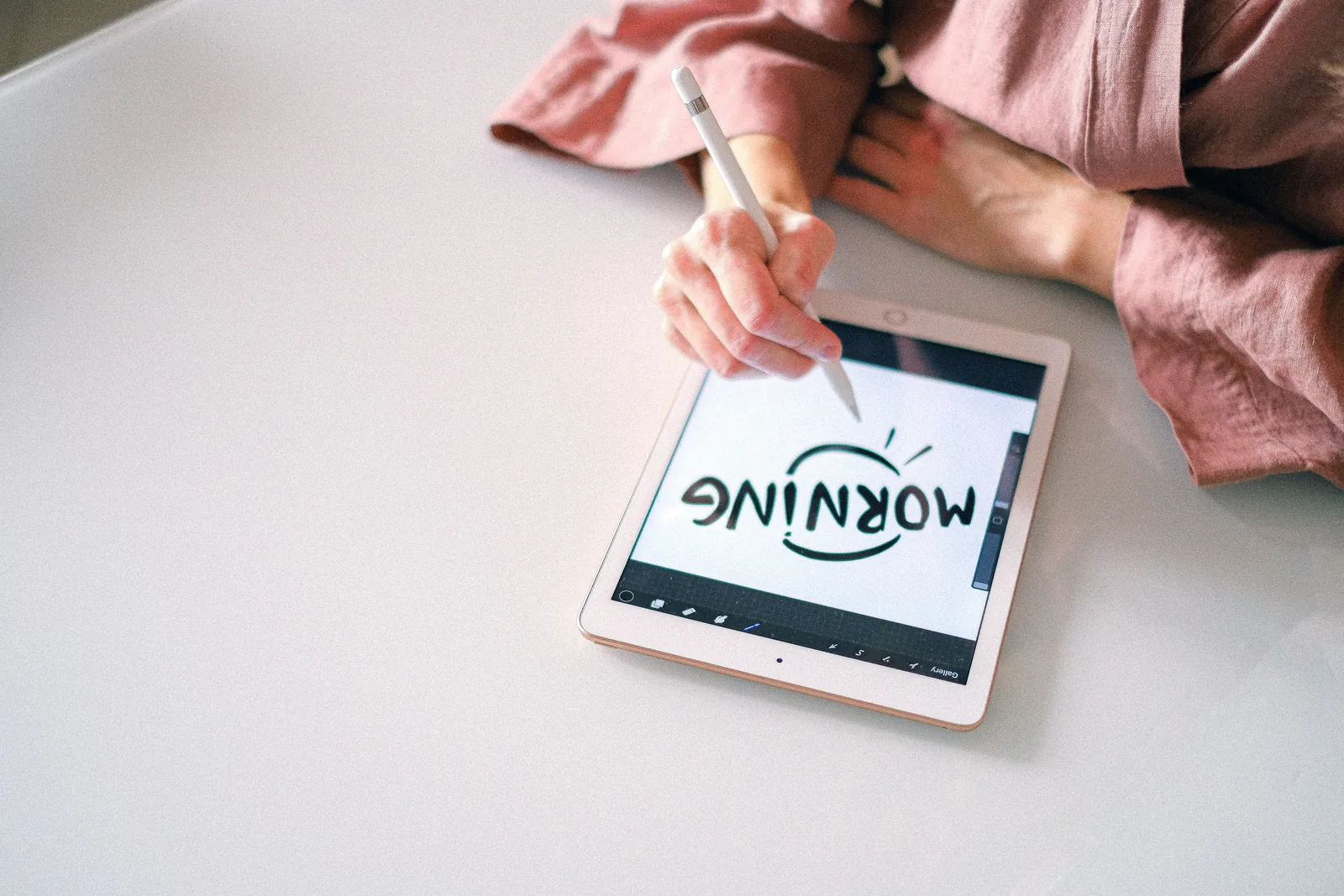
A few extras help planners specifically. Scribble, an Apple feature, converts Apple Pencil handwriting into typed text in supported text fields; the Goodnotes article on using Scribble lists document titles, the search bar and text boxes as examples. That means you can rename a notebook or search your planner without switching to the keyboard. Apple Pencil (2nd generation) and Apple Pencil Pro also support double-tap to switch tools, so going from pen to eraser does not require a trip to the toolbar.
Is pressure sensitivity necessary for planning?
For most planner pages, no. Pressure sensitivity changes line width as you press harder, which matters for lettering and drawing. Goodnotes offers three pen styles in its Pen tool settings: the Fountain Pen and Brush Pen respond to pressure, while the Ball Pen gives consistent, non-pressure-sensitive ink. Task lists, appointments and habit check marks look fine with the Ball Pen, so a pencil without pressure support is not a downgrade for that kind of writing.
Pressure starts to matter if your planner doubles as a lettering or sketch journal, where you want thick downstrokes on headers. Notability’s Writing with Apple Pencil article points out that Apple Pencil (USB-C) does not support pressure sensitivity, so decorative headers would need another model.
🏗️ Real-World Example
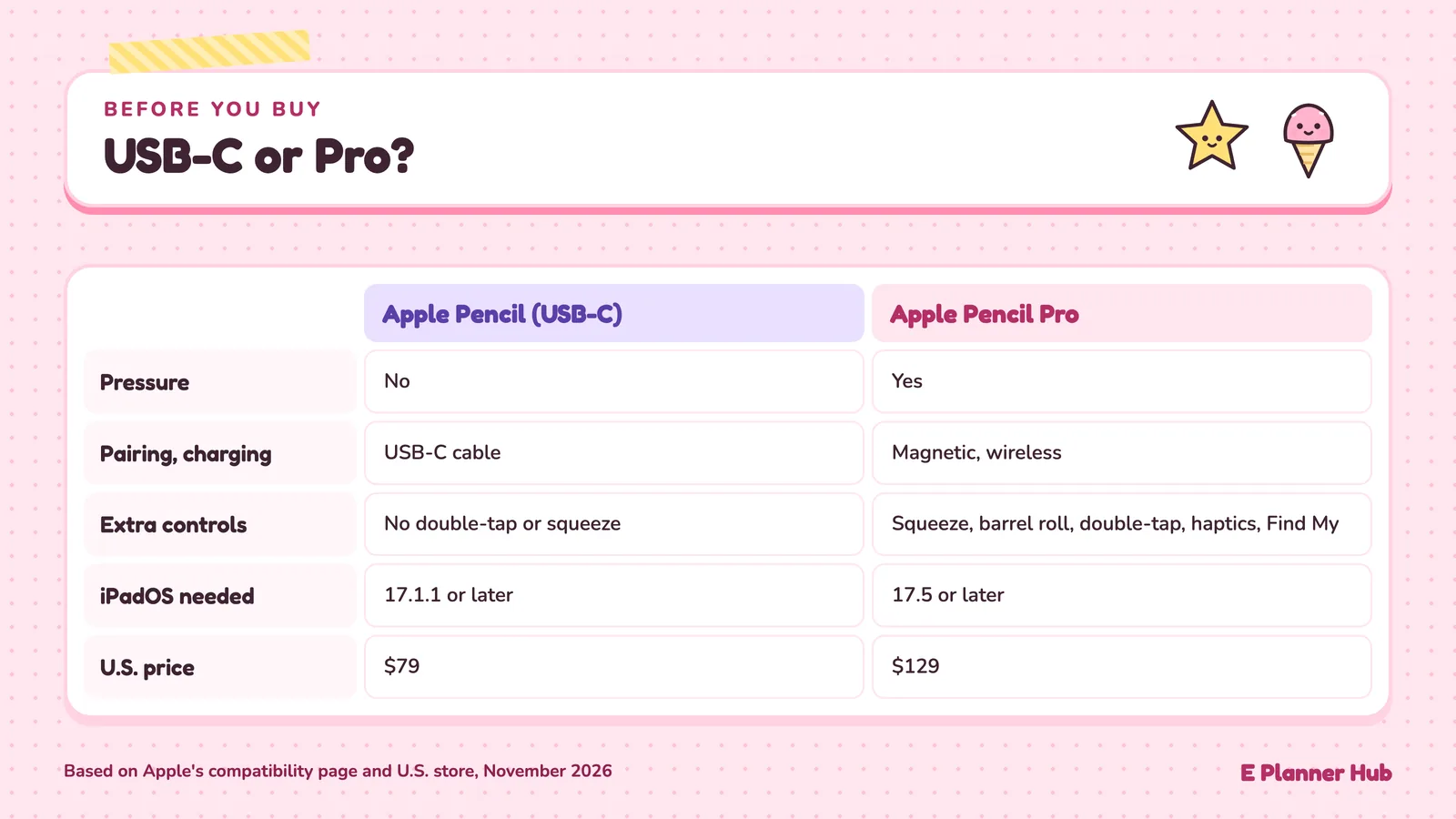
Apple Pencil (USB-C) (Apple, 2023): When Apple announced this model in October 2023, it priced it at $79 in the U.S. and described it for note taking, annotating and journaling, with pixel-perfect accuracy, low latency and tilt sensitivity. It left out pressure sensitivity and pairs and charges through a USB-C cable instead of magnetically. The model shows that Apple itself treats pressure as optional for everyday writing, which is most of what a planner page asks for.
Which Apple Pencil Works With Your iPad? #
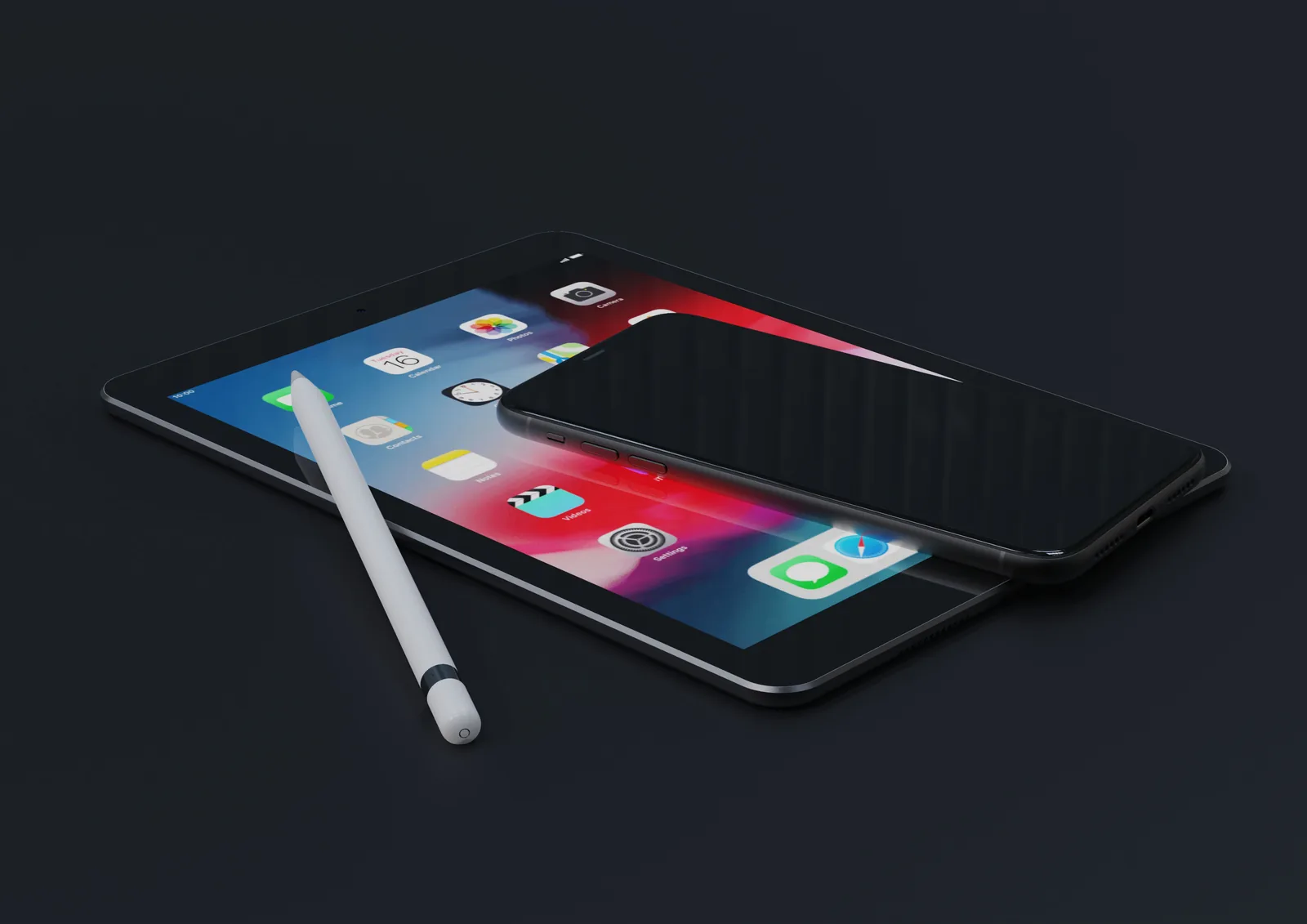
Contents ↑Compatibility is strict, so check your iPad before you buy anything. On the iPad, go to Settings, then General, then About, and read the Model Name. Compare it with Apple’s Apple Pencil compatibility page, which lists every supported iPad for each of the four Pencil models. An iPad can run Goodnotes and still not support every Pencil.
Apple Pencil models at a glance
The table summarizes the four models. Example iPads are a sample, not the full list.
| Model | Pressure sensitivity | Pairing and charging | Extra controls | Example iPads |
|---|---|---|---|---|
| Apple Pencil Pro | Yes | Magnetic, wireless | Squeeze, barrel roll, double-tap, haptics, Find My | iPad Air (M2, M3, M4), iPad Pro (M4, M5) |
| Apple Pencil (USB-C) | No | USB-C cable | No double-tap or squeeze | iPad (A16), iPad (10th generation), most USB-C iPads |
| Apple Pencil (2nd generation) | Yes | Magnetic | Double-tap | iPad Air (4th, 5th generation), iPad mini (6th generation) |
| Apple Pencil (1st generation) | Yes | Lightning, or adapter on USB-C iPads | No double-tap or squeeze | iPad (6th to 9th generation), iPad Air (3rd generation) |
Pressure and double-tap support follow Apple’s Draw with Apple Pencil on iPad guide.
📐 Technical Note
Apple Pencil Pro needs iPadOS 17.5 or later and Apple Pencil (USB-C) needs iPadOS 17.1.1 or later, according to Apple’s compatibility page. Apple Pencil (1st generation) works with iPad (A16) and iPad (10th generation) only through a USB-C to Apple Pencil Adapter, which is required to pair and charge it with those two models. If a 1st generation Pencil arrives without the adapter, it will not pair with those iPads.
Cheaper Alternatives That Still Work in Planner Apps #
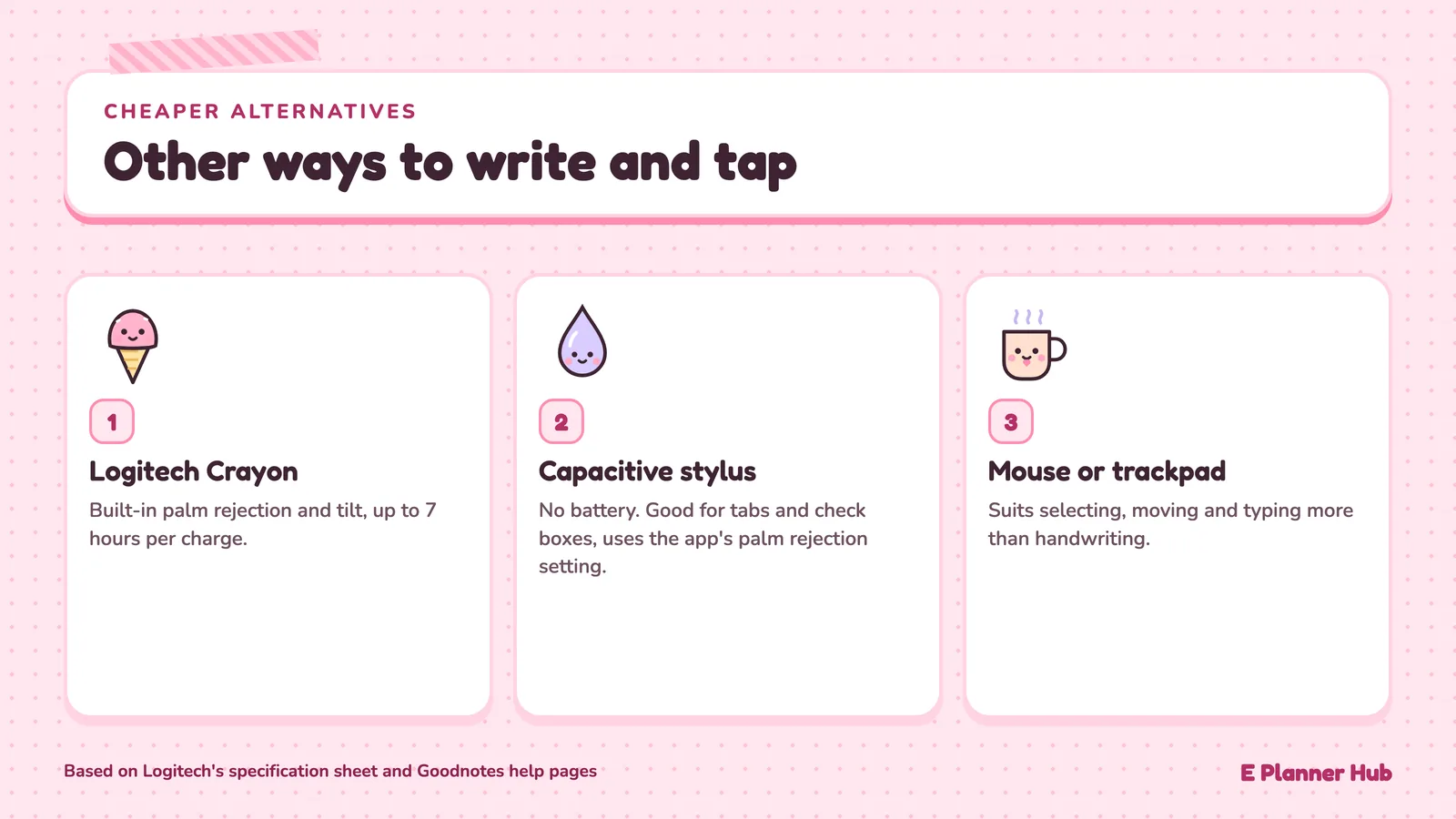
Contents ↑If you mainly want palm rejection and neat writing, there are options below the price of an Apple Pencil, each with a trade-off.
Logitech Crayon
The Logitech Crayon (USB-C) is made with Apple Pencil technology and supports iPads from 2018 and later, according to Logitech. Goodnotes lists it alongside Apple Pencil as a stylus with built-in palm rejection, so you skip the palm rejection setup described above. Its specification sheet lists tilt sensitivity, palm rejection, a replaceable tip and up to 7 hours of active writing time on a charge.
That spec sheet does not list pressure sensitivity, so treat it like the USB-C Pencil for pen choice: the Goodnotes Ball Pen suits it well. The trade-off is the same as with the USB-C Pencil: everyday writing is covered, expressive lettering is not.
Capacitive stylus
A plain capacitive stylus, the kind with a rubber or mesh tip and no battery, behaves like a narrower finger. It helps with tapping small tabs and drawing check boxes, but Goodnotes groups it with finger input, so you rely on the app’s palm rejection setting rather than on the stylus. Notability handles this by letting you disconnect Apple Pencil inside a note so a finger or another stylus can write, and it reconnects automatically when you pick up Apple Pencil again.
Mouse or trackpad
Goodnotes supports a Bluetooth mouse, wired mouse or trackpad for annotating on iPad, as explained in its article Can I use my mouse to take notes? A mouse gives no pressure sensitivity, so it suits selecting, moving and typing more than handwriting.
🔢 Quick Numbers
- Apple Pencil (USB-C): $79 on Apple’s U.S. store, as of November 2026
- Apple Pencil Pro: $129 on Apple’s U.S. store, as of November 2026
- Logitech Crayon (USB-C): $69.99 on Logitech’s U.S. store, as of November 2026
- Logitech Crayon (USB-C): up to 7 hours of active writing per charge, per Logitech’s specification sheet
How to Decide Before You Buy #
Contents ↑Spend one week planning with your finger before you spend money. Use Read Only Mode for moving between pages, type your appointments and handwrite only the daily top three. At the end of the week, look at which entries you skipped. If the skipped ones are the handwritten parts, a stylus will probably change your habits. If you skipped nothing, you may not need one.
A few questions narrow the choice quickly:
- Do you write full sentences each day? Journaling prompts, meeting notes and gratitude logs push you toward a real stylus with palm rejection.
- Do you letter headers or sketch in the margins? Then pressure sensitivity is worth paying for, which rules out the USB-C Pencil and the Crayon.
- Is your iPad older? Check the Model Name first. The 1st generation Pencil may be the only Apple option for some models.
Layout matters too. Planners with large daily boxes are friendlier to finger writing than dense weekly grids. If you are still deciding on the app itself, our Goodnotes vs Notability comparison is a good next read. You can also browse the hyperlinked digital planners in our shop, which open in Goodnotes, Notability and other PDF annotation apps and work with finger taps or a stylus.
On Android the question often disappears: Samsung says the Galaxy Tab S11 series ships with an S Pen in the box.
Prices are as of November 2026 and change often, so check the manufacturer’s store page before you buy. Features vary by app version and device; check the developer’s support page for your setup.
The Bigger Picture #
Contents ↑The stylus question is really a question about which parts of planning you do by hand. People moving from a paper planner often assume the pen is the planner, yet the habit lives in the weekly review, not in the ink. Decide what you want to write by hand first, and the right Apple Pencil for digital planner pages, or the decision to skip one, follows from that.