How to Use a Digital Planner on Android with Samsung Notes and Other Apps
 Published
Updated
On this page
- What You Need to Use a Digital Planner on Android
- Which Android App Should You Use for a Digital Planner?
- How to Import a Planner into Samsung Notes
- How to Import a Planner into Goodnotes on Android
- Making Hyperlinks Work on Android
- Daily Use: Writing, Copying Pages and Backing Up
- Moving Between Android and an iPad
- Final Thoughts
- Frequently Asked Questions
To use a digital planner on Android, import the planner PDF into a note app that can write on PDFs, such as Samsung Notes on a Galaxy tablet, Goodnotes, Notability or Flexcil, then test the tabs before you start writing. Each app handles hyperlinks differently, so the right choice depends on your device and plan.
Most digital planner guides assume an iPad. If you plan on a Galaxy Tab or another Android tablet, the files are the same, since a hyperlinked planner is a standard PDF, but the apps, menus and limits are different. Some things that are one tap on an iPad take an extra step on Android, and a few apps document their planner support far better than others.
This guide walks through the setup on Android: which apps can run a PDF planner, how to import one into Samsung Notes and Goodnotes, how to get the tabs working, and how to keep the planner safe and in sync. Every app step comes from the developer’s own help pages.
What You Need to Use a Digital Planner on Android #
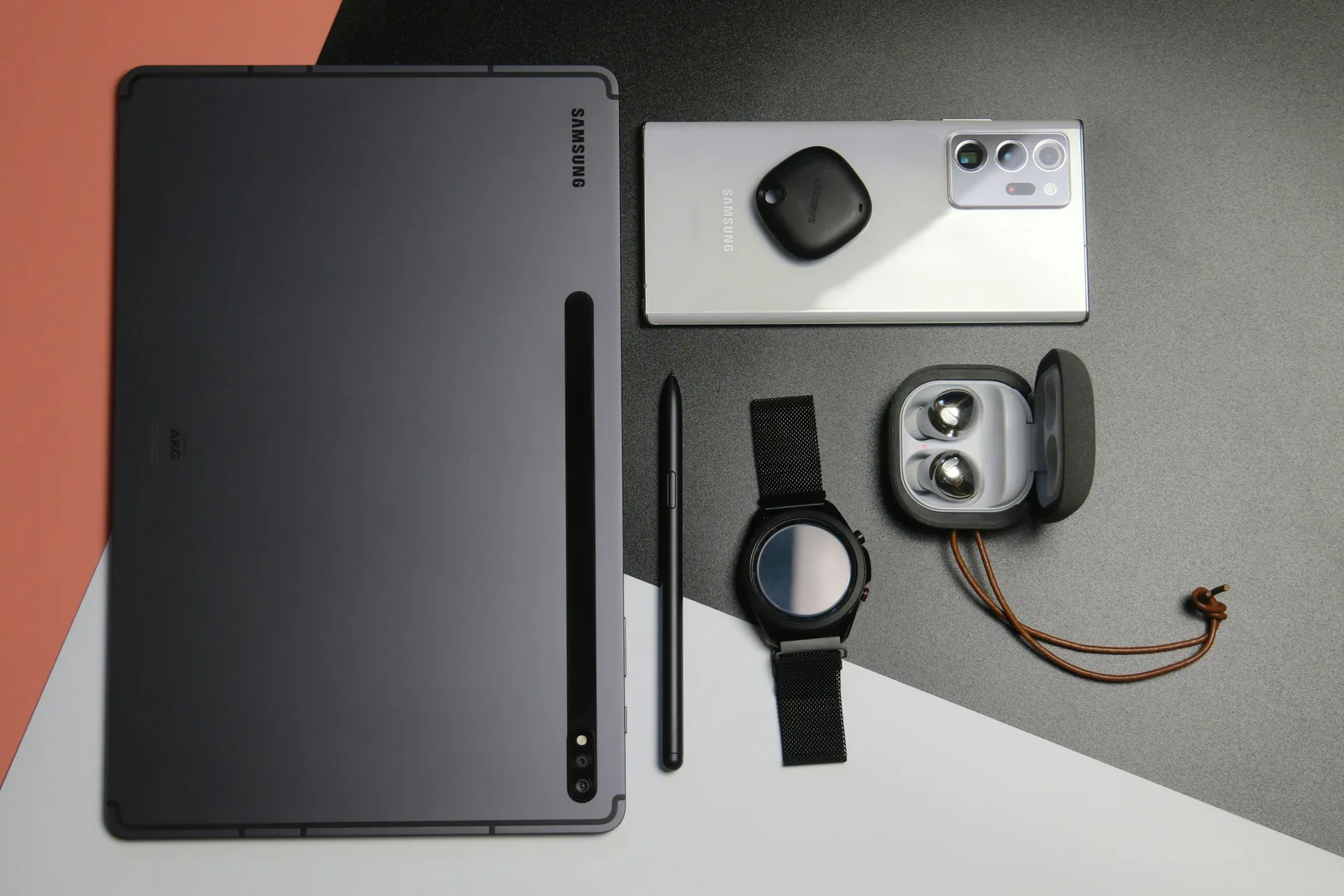
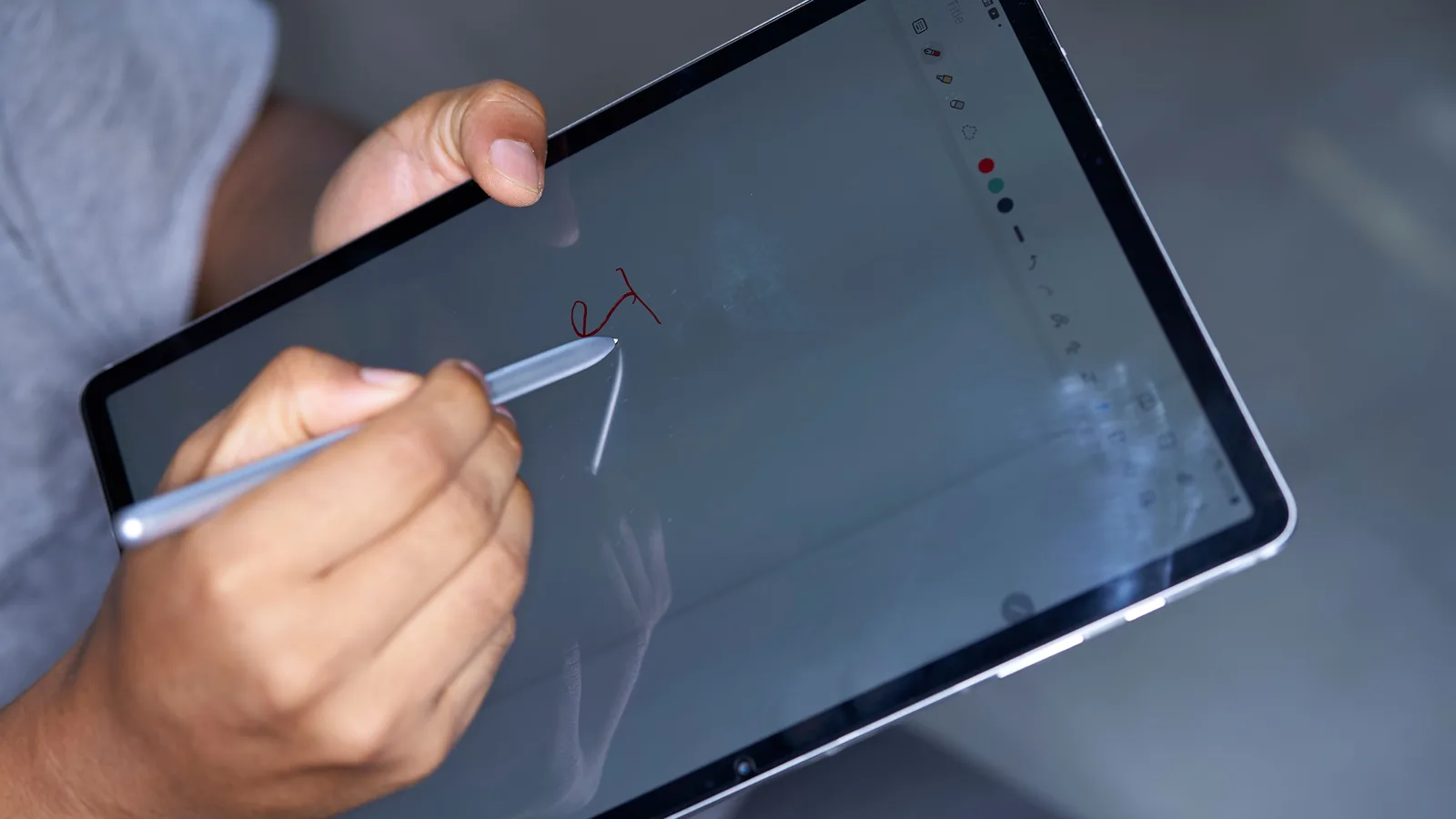
Contents ↑You need three things: an Android tablet, a stylus that works with it, and a PDF planner. Phones work too, but a planner page is designed for a tablet-sized screen and writing on a phone gets cramped quickly.
For the stylus, check what your tablet supports. Samsung’s Samsung Notes instructions are written around the S Pen on compatible Galaxy devices, and other Android tablets use their own styluses.
For the planner, any hyperlinked PDF made for note apps will do. If you are not sure what makes a planner hyperlinked, our explainer on how planner tabs work covers it. Our own digital planners are hyperlinked PDFs, so the steps below apply to them as well.
Which Android App Should You Use for a Digital Planner? #
Contents ↑Four apps cover most Android planner setups. They differ mainly in how clearly they document hyperlink support, which matters more than anything else for a tabbed planner.
Samsung Notes
Samsung Notes is the note app Samsung provides on Galaxy phones and tablets. Samsung’s support page on importing and exporting PDFs with Samsung Notes confirms that you can import a PDF, write and draw on it, and export it again. It costs nothing extra if you already own a Galaxy tablet.
Samsung’s help pages do not describe how links inside an imported planner behave, so test the tabs on your own device before you commit to it. If a tap writes on the page instead of jumping, look for a reading or view mode in your version of the app and test the link there.
Goodnotes for Android
Goodnotes runs on Android tablets, installed from Google Play or the Galaxy Store. Its FAQ on features available on Android, Windows and the web states plainly that hyperlinks in planners work on those platforms. It is the most clearly documented option for a tab-heavy planner.
Check your hardware first. Goodnotes’ system requirements article recommends an Android tablet with at least 4 GB of RAM, an 8-inch screen or larger and Android 14 or later.
Notability for Android
Notability is also on Android. The Notability for Android FAQ lists Android 12L or later as the requirement, supports the S Pen, and notes that comments and text-only mode were not yet available on Android. Notability’s help center does not document hyperlink behavior in imported planners, so test before you rely on it.
Flexcil
Flexcil is a PDF and note app with an Android version. Its support article on planner hyperlinks that do not work gives a clear rule: hyperlinks work only in gesture mode, which you switch to with the icon on the far left of the pen toolbar.
The four apps side by side
The following table summarizes what each app documents for planner use, as of November 2026:
| App | Where it runs | Planner links documented | Watch for |
|---|---|---|---|
| Samsung Notes | Galaxy phones and tablets | Not in Samsung’s help pages | Page orientation must match |
| Goodnotes | Android 14 or later, 4 GB RAM | Yes, Read Only Mode or press and hold | 5 MB import limit on free plan |
| Notability | Android 12L or later | Not documented for imported planners | Some iPad features missing |
| Flexcil | Android and iOS | Yes, in gesture mode | Pen mode blocks links |
How to Import a Planner into Samsung Notes #
Contents ↑Save the planner PDF to your tablet first, usually in the Download folder of the My Files app. Then follow Samsung’s steps:
- Open Samsung Notes.
- Touch and hold the Create note icon in the bottom right, then tap Import PDF. Or tap Create note, tap the Insert icon (the plus sign), then tap PDF.
- Select the folder, then select the planner PDF.
- Tap Done.
Samsung notes that importing makes a copy of the PDF in Samsung Notes without changing the original file. Keep the original in My Files as your clean master copy.
Set the note style to individual pages
Samsung Notes has two note styles. Samsung’s article on organizing notes and PDFs explains that Individual page style keeps separators between pages, while Infinite scrolling turns the note into one endless page, and the choice also applies to how imported PDFs are shown. A planner is built page by page, so Individual pages is usually the better match. You set it from Menu, then the Settings icon, then Default note style.
⚠️ Common Mistake to Avoid
Mixing page orientations. Samsung’s troubleshooting page explains that if your Samsung Notes default orientation is landscape, you cannot insert portrait-oriented PDFs or pages, and the reverse is also true. Match the planner’s orientation before you import, or keep portrait and landscape planners in separate notes.
How to Import a Planner into Goodnotes on Android #
Contents ↑In Goodnotes on Android, open Documents, select New, then Import, and choose the PDF from the file picker. The planner opens as a new notebook with all its pages.
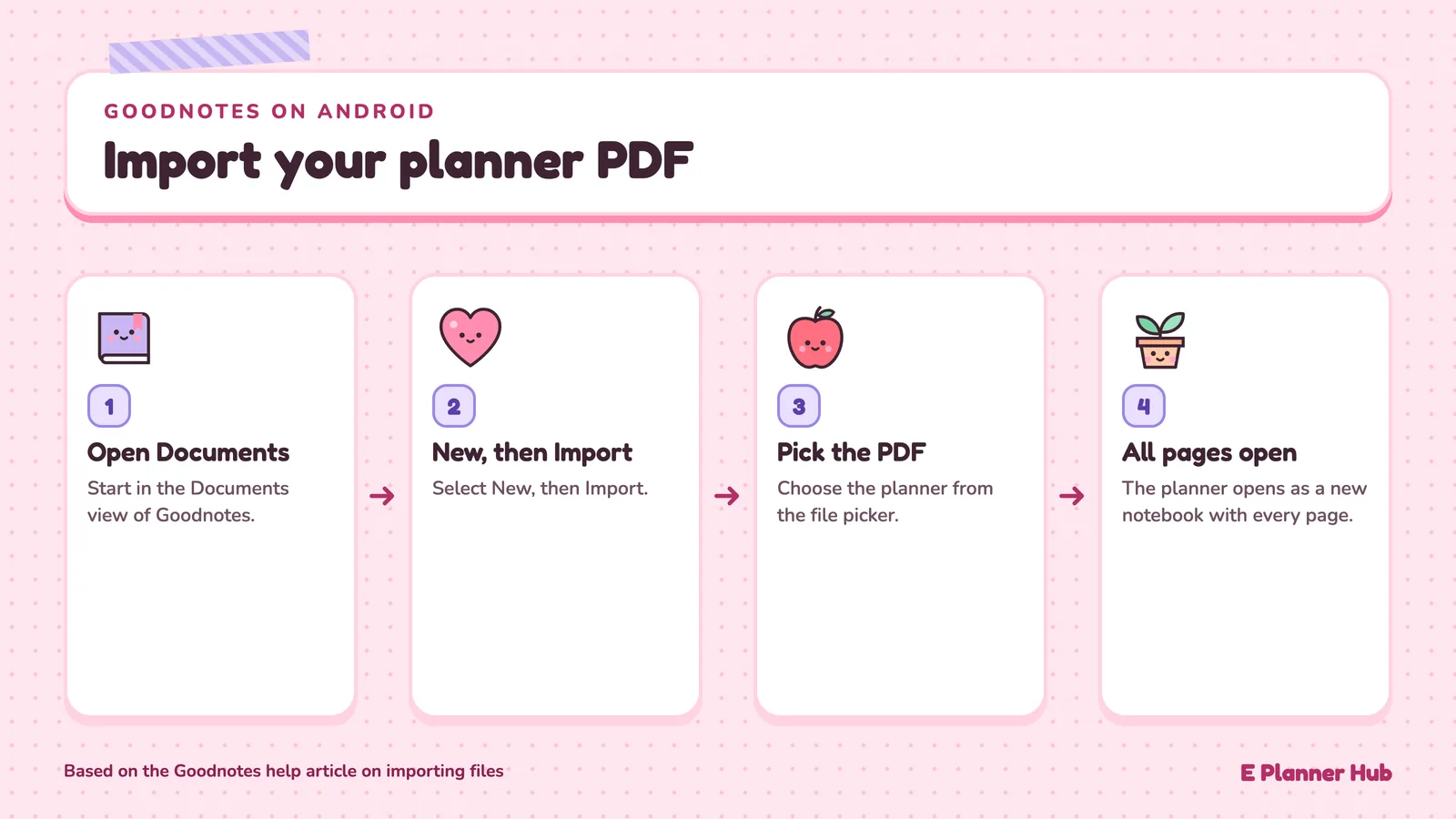
The free plan is the usual stumbling block. Goodnotes’ import article says free users can import files up to 5 MB, while subscribers on Android, Windows and the web can import PDFs up to 1 GB. If a planner refuses to import on a free account, check its size before anything else.
📐 Technical Note
Requirements differ more than people expect. Goodnotes recommends Android 14 or later, at least 4 GB of RAM and an 8-inch or larger screen, and says lower-specification devices may run it with different performance. Notability’s minimum is Android 12L (API level 32). Check your tablet’s Android version under Settings before paying for a plan.
Making Hyperlinks Work on Android #
Contents ↑A frequent Android planner problem is that tapping a tab draws a dot instead of jumping. The app has to know when a tap means “follow the link” rather than “write here”, and each app handles that in its own way.
In Goodnotes
Goodnotes’ article on opening hyperlinks in imported PDFs gives two options for Android: enter Read Only Mode and select the link, or in Edit Mode press and hold the link and select “Open Link”. The Read Only Mode button sits in the Nav Bar at the top of the document.
In Flexcil
Switch to gesture mode with the icon on the far left of the pen toolbar, then tap the tab. Switch back to pen mode to write.
In Samsung Notes and Notability
Neither help center documents how tabs in an imported planner behave. Import the planner, tap a month tab, a week link and the home link, and see whether each one jumps to the right page. If they do, you are set. If they do not, Goodnotes or Flexcil are the documented options.
💡 Pro Tip
Do your link testing on a copy, not on the planner you will write in. Import the PDF twice, call one copy “test”, and tap every kind of link in it: year, month, week, day and any index or notes tabs. Delete the test copy once you know which mode the links need.
Daily Use: Writing, Copying Pages and Backing Up #
Contents ↑Once the planner works, a few habits keep it running smoothly through the year.
Keep a clean master
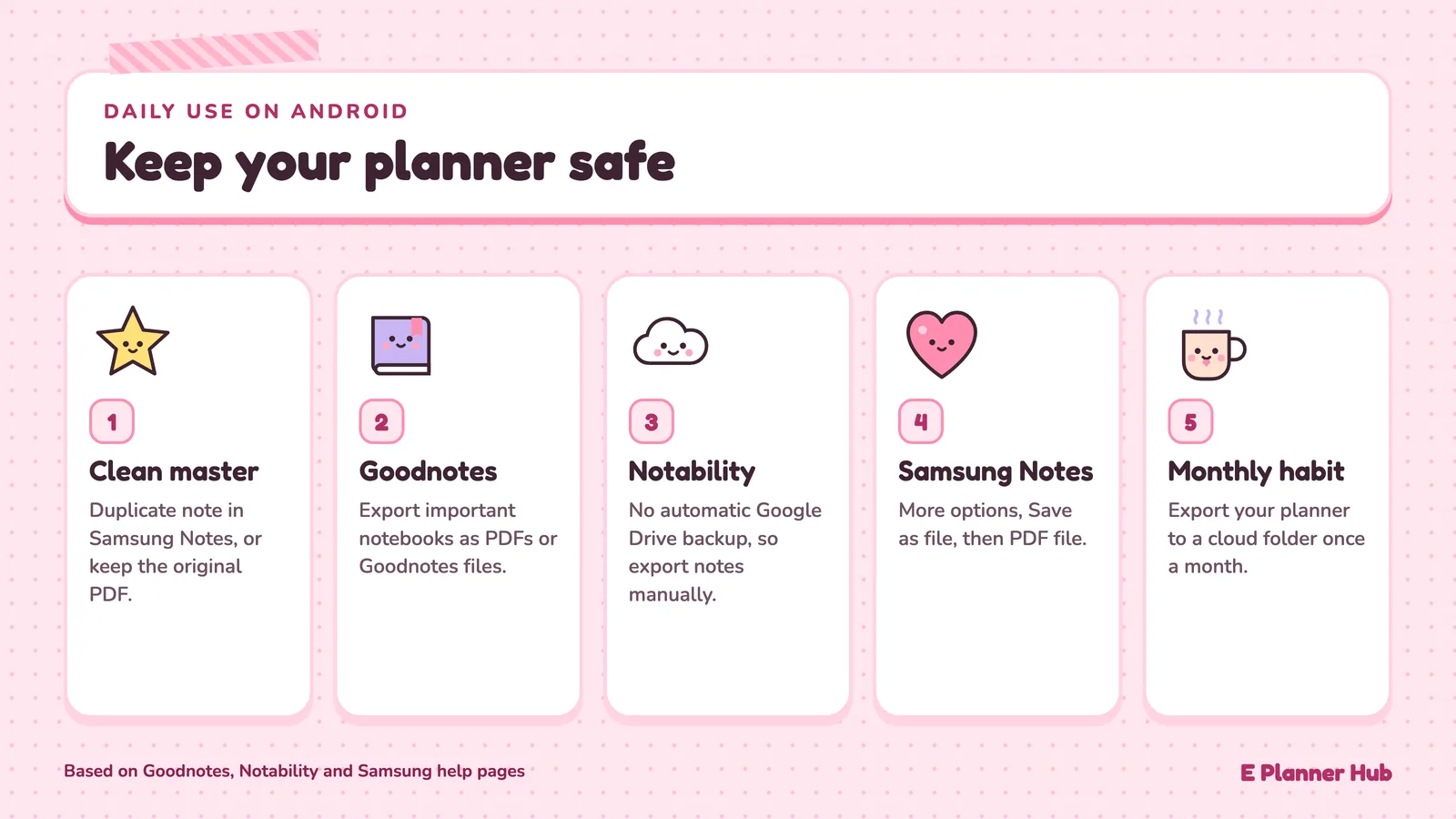
In Samsung Notes, touch and hold a note in All notes, tap More options and choose Duplicate note to make a blank copy before you write. In Goodnotes, keep the original PDF in your file manager so you can import a fresh copy at any time.
Back up your planner
Backups on Android need a little planning. Goodnotes’ FAQ for Android, Windows and the web says a full manual library backup is not currently available there, and recommends exporting important notebooks as PDFs or Goodnotes files and storing copies separately. The Notability for Android FAQ says automatic backup to services such as Google Drive is not supported, so you export notes manually.
Samsung Notes exports too: open the note, tap More options, then Save as file, then PDF file, and choose a folder. Exporting your planner once a month to a cloud folder is a simple safety net.
📌 Did You Know?
Samsung Notes offers its own page templates, such as grids and lined paper, and lets you add your own from the Gallery. Samsung’s organizing article notes one exception that matters to planner users: you cannot apply a page template to a note that was imported from a PDF.
Moving Between Android and an iPad #
Contents ↑Many people plan on two devices, for example an Android tablet at home and an iPad at work. How well that works depends on the app.
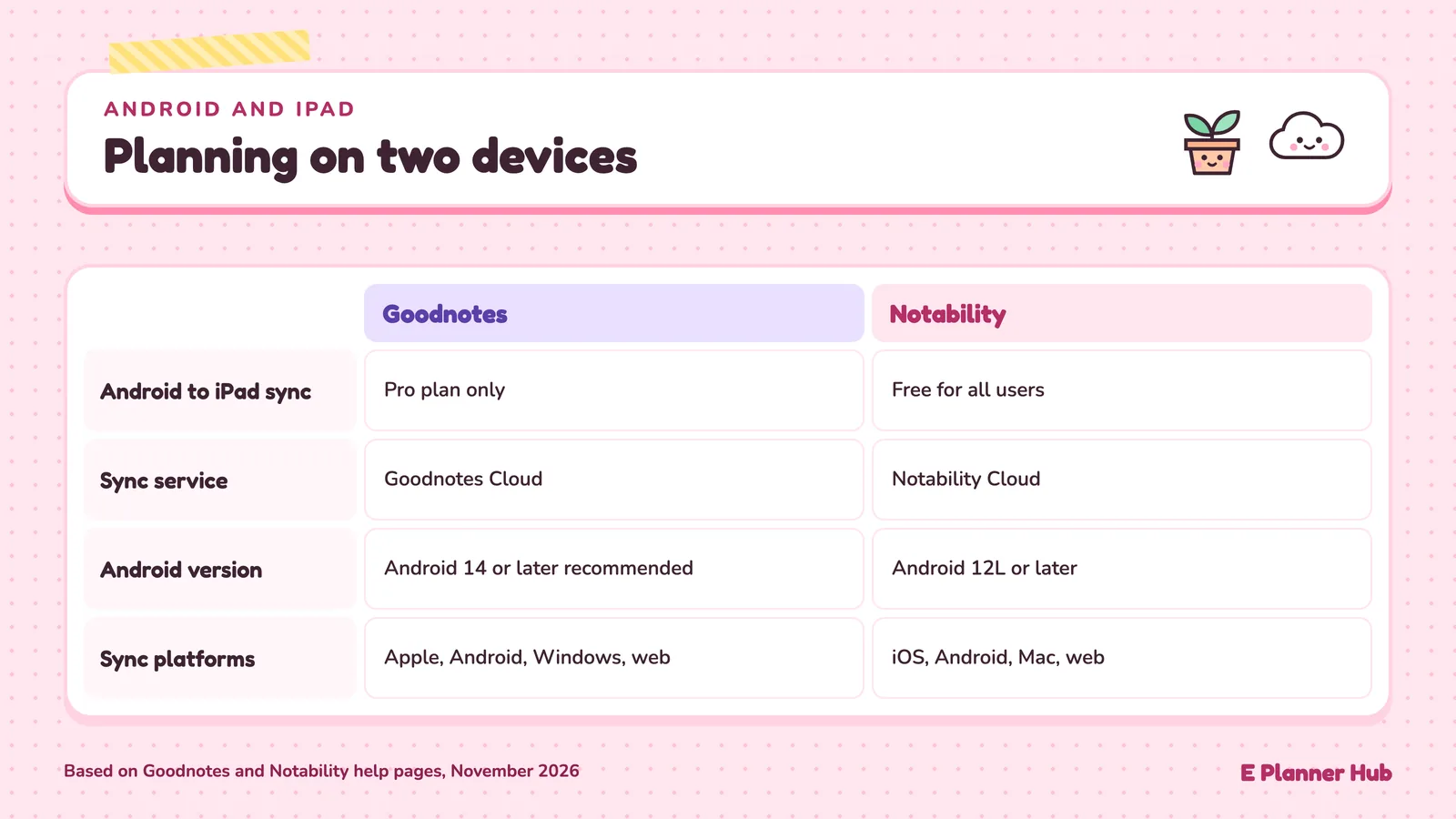
In Goodnotes, your library syncs between Apple and non-Apple devices only with Goodnotes Cloud, which Goodnotes includes with the Pro plan. Between Android, Windows and the web alone, notebooks sync through Goodnotes Cloud when you sign in with the same account. In Notability, Notability Cloud syncs notes across iOS, Android, Mac and the web and is free for all users. Samsung Notes runs on Samsung devices, so it will not carry your planner to an iPad.
If you also use an iPad, our guide on importing a digital planner into Goodnotes covers that side, and our Goodnotes vs Notability comparison explains how each app syncs between Apple and Android devices.
Features vary by app version and device. Check the developer’s support page for your setup before you buy a planner or a subscription.
Final Thoughts #
Contents ↑✅ Key Takeaways
- A hyperlinked PDF planner works on Android, but link behavior depends on the app you open it in.
- Goodnotes and Flexcil document planner hyperlinks on Android; Samsung Notes and Notability do not, so test first.
- In Samsung Notes, use Individual page style and match the planner’s orientation before importing.
- Goodnotes Free limits imports to 5 MB, so check file size if a planner will not open.
- Export your planner as a PDF regularly, since full library backups are limited on Android.
Planning on Android is less about finding the perfect app and more about knowing which mode makes a tap follow a link. Spend ten minutes testing on a copy, settle on the app that passes, and the rest of the year works the same way it would on any tablet.
Frequently Asked Questions #
Contents ↑Can you use a digital planner on Android?
Yes. A digital planner is a PDF, so any Android app that can import and write on PDFs can open it. Samsung Notes, Goodnotes, Notability and Flexcil all run on Android tablets, though they handle hyperlinked tabs differently.
Do planner hyperlinks work in Samsung Notes?
Samsung’s help pages document importing and annotating PDFs but do not describe link behavior in imported planners. Test a few tabs on your own device. If a tap writes instead of jumping, check for a reading or view mode in your version of the app.
What is the best Android app for a hyperlinked planner?
For documented link support, Goodnotes and Flexcil are the clearest. Goodnotes opens links in Read Only Mode or with a press and hold, and Flexcil opens them in gesture mode. Samsung Notes is the natural free choice on a Galaxy tablet if your planner’s tabs pass a quick test.
Why won’t my planner import into Goodnotes on Android?
Check the file size first. Goodnotes Free allows imports up to 5 MB per file, while paid plans allow PDFs up to 1 GB on Android. Also confirm your tablet meets Goodnotes’ recommended specifications.