What Is a Hyperlinked Digital Planner and How Do the Tabs Work?
 Published
Updated
On this page
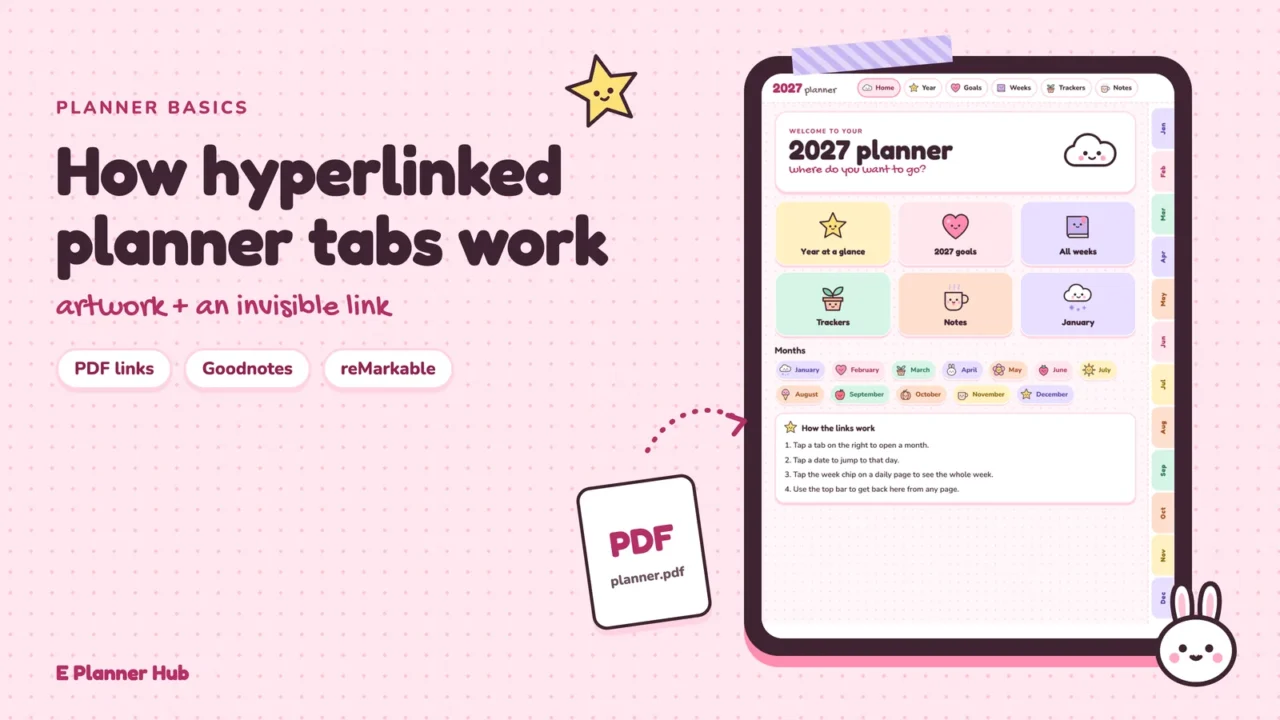
A hyperlinked digital planner is a PDF planner whose tabs, calendar dates and index entries are clickable links to other pages in the same file. Tap the “March” tab and the app jumps to the March page. The links are invisible areas placed over the drawn tabs, and they work in PDF apps that support internal links.
If you have ever opened a planner, tapped a tab and watched nothing happen, or drawn a stray line across the tab instead, you have met the main confusion around these files. The tab looks like a button, but it is really two separate things stacked together: a picture of a tab and an invisible link sitting on top of it. Seen that way, it makes sense that the same file works in one app and feels broken in another.
What Is a Hyperlinked Digital Planner? #
Contents ↑A hyperlinked digital planner is a single, usually long, PDF file laid out like a paper planner: a year overview, monthly calendars, weekly spreads, daily pages and note pages. What makes it “hyperlinked” is a network of internal links that lets you move between those pages by tapping, instead of scrolling or flipping through thumbnails.
A plain PDF planner has the same pages but no links. You can still write in it, but getting from January to July means scrolling through hundreds of pages or searching the thumbnail view. For a file you open several times a day, that difference adds up quickly.
Goodnotes describes the idea plainly in its help article on opening hyperlinks in imported PDFs: hyperlinks can open another page in the document or an external website, and a digital planner might link its index to monthly, weekly or daily pages.

How the Tabs Actually Work #
Contents ↑PDF is a published standard. The Library of Congress format description for PDF 1.7 (ISO 32000-1:2008) lists support for annotations, metadata, hypertext links and bookmarks as part of the format. A planner’s tabs use the link part of that standard.
🎓 Expert Insight
“A link annotation represents either a hypertext link to a destination elsewhere in the document or an action to be performed”, ISO 32000-1:2008, section 12.5.6.5 (International Organization for Standardization)
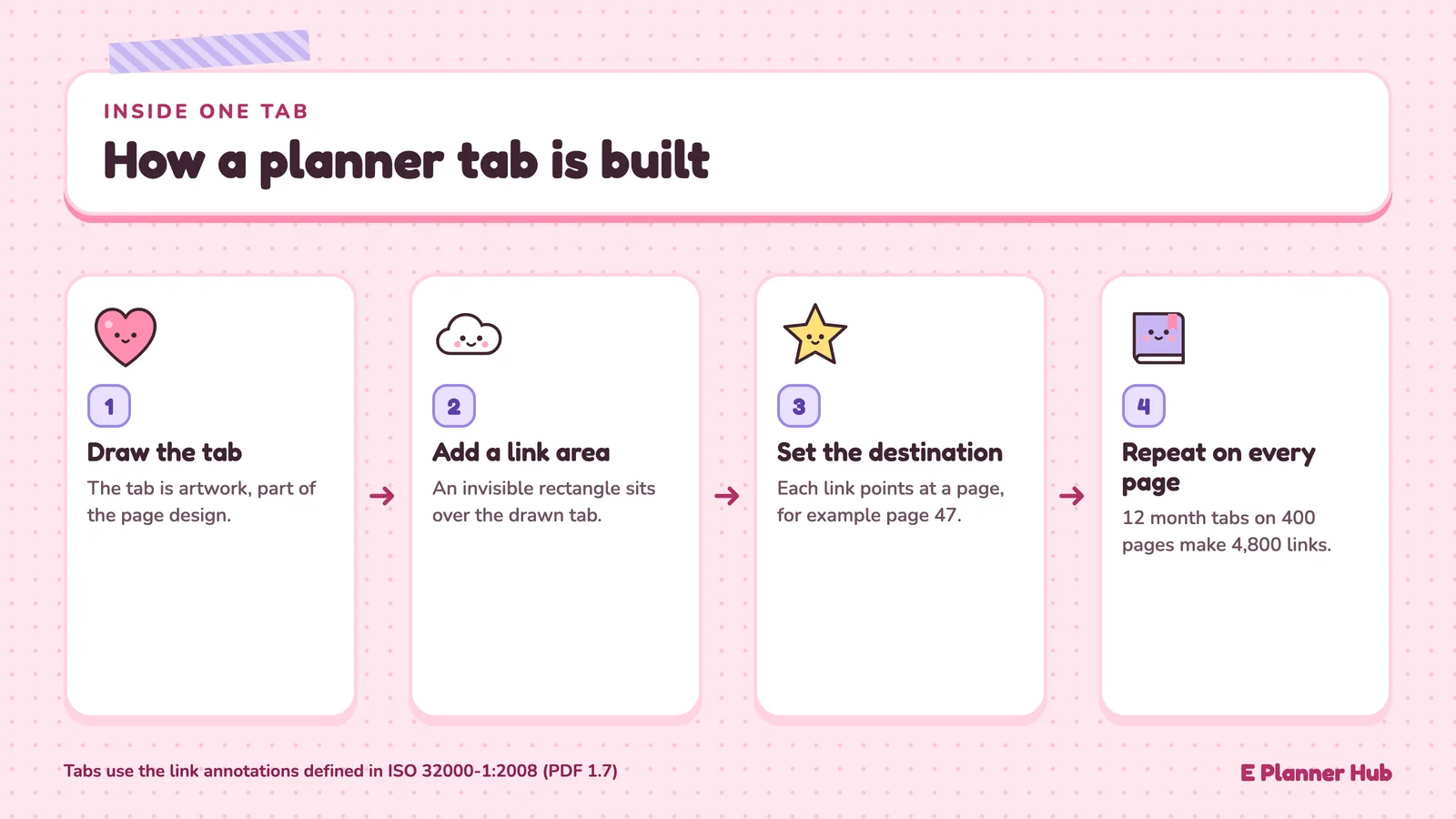
That one sentence describes every tab in a planner. The tab you see is artwork on the page; the link annotation is a separate rectangle defined on top of it, pointing at a destination page. Adobe hosts an ISO-approved copy of the standard if you want to read the full definition.
In practice, a planner designer draws the tabs as part of the page design, then places a link rectangle over each tab and sets its destination, for example “page 47”. Because the rectangle is invisible, nothing on the page tells you where the clickable area starts and ends. That is why tapping the very edge of a small tab sometimes misses.
Why the tabs appear on every page
A paper planner has physical tabs sticking out of the side. A PDF cannot do that, so the designer repeats the tab strip on every page and repeats the links with it. A 12-month tab strip repeated across 400 pages works out to 4,800 separate links, each pointed at the right month. When people describe a planner as “fully hyperlinked”, this is usually what they mean: every tab, on every page, points somewhere.
Internal links and external links
Most planner links are internal: they jump to another page in the same file. Some planners also include external links that open a website or an app. Notability’s built-in planner, for example, has tabs that open Google Calendar, according to Ginger Labs’ guide to using digital planners in Notability. External links leave your planner app, so treat them as shortcuts rather than part of the page navigation.
📌 Did You Know?
The link feature planner tabs depend on has been part of an international standard for years. According to the Library of Congress, PDF 1.7 was released by Adobe in November 2006 and published as ISO 32000-1 in July 2008. That shared standard is why the same planner file can open in Goodnotes, Notability and other PDF apps at all.
What a Typical Hyperlink Map Looks Like #
Contents ↑Every planner shop builds its own structure, but most follow the same layered pattern, from the widest view down to a single day:
- Year overview: each month name links to that month’s calendar page.
- Monthly calendar: each date links to its daily page, and each week row may link to its weekly spread.
- Weekly spread: each day heading links to the daily page; a small month name links back up.
- Side tabs on every page: one tab per month, plus tabs for sections such as notes, goals or habit trackers.
- A home or index link, usually in a corner, that returns you to the start.
The result is that you are rarely more than two taps from any page, although jumping sideways between unrelated sections often means going back to the index first.
🏗️ Real-World Example
2026 Yume Techo Planner (Ginger Labs, Notability): In Notability’s built-in planner, a single tab can do more than one thing. Ginger Labs’ help page says a double tap on a monthly tab opens the Monthly Overview and a triple tap opens a One Line a Day page, while the 2026 tab opens one yearly page with a single tap and a second one with two. This works inside Notability’s own template, and it shows how much of tab behavior is decided by the app, not the drawing on the page.
Where the Tabs Work, and Where They Don’t #
Contents ↑A hyperlink only works if the app reading the PDF supports it, and apps handle taps differently because a tap can also mean “write here”.

In Goodnotes on iOS, you select the linked tab or date and the page opens. On Android, Windows and the web, Goodnotes asks you to enter Read Only Mode first, then select the link; in Edit Mode you press and hold the link and choose Open Link. On iPad, Read Only Mode helps when a tap leaves a stroke instead.
On e-ink tablets, support depends on the device software. reMarkable added internal navigation links in PDFs in its software update 2.6 in March 2021, so an index tab can jump to a page with a tap. For any other app, check its support pages before buying a planner for it.
How links get lost
Because links sit on top of the page as a separate layer, some actions remove them. The most common is exporting. Goodnotes explains in its article on Editable and Flattened PDF export that a flattened export does not preserve original PDF hyperlinks, while an editable export does. If you send your planner to another device as a flattened PDF, the tabs will still look like tabs, but they will be pictures only.
💡 Pro Tip
Right after importing a new planner, tap through one of each link type before you write anything: a side tab, a date on the year page, a day on a monthly calendar and the home link. If one type fails, you know about it while the file is still blank and easy to replace or re-import.
Hyperlinked vs Plain PDF Planners #
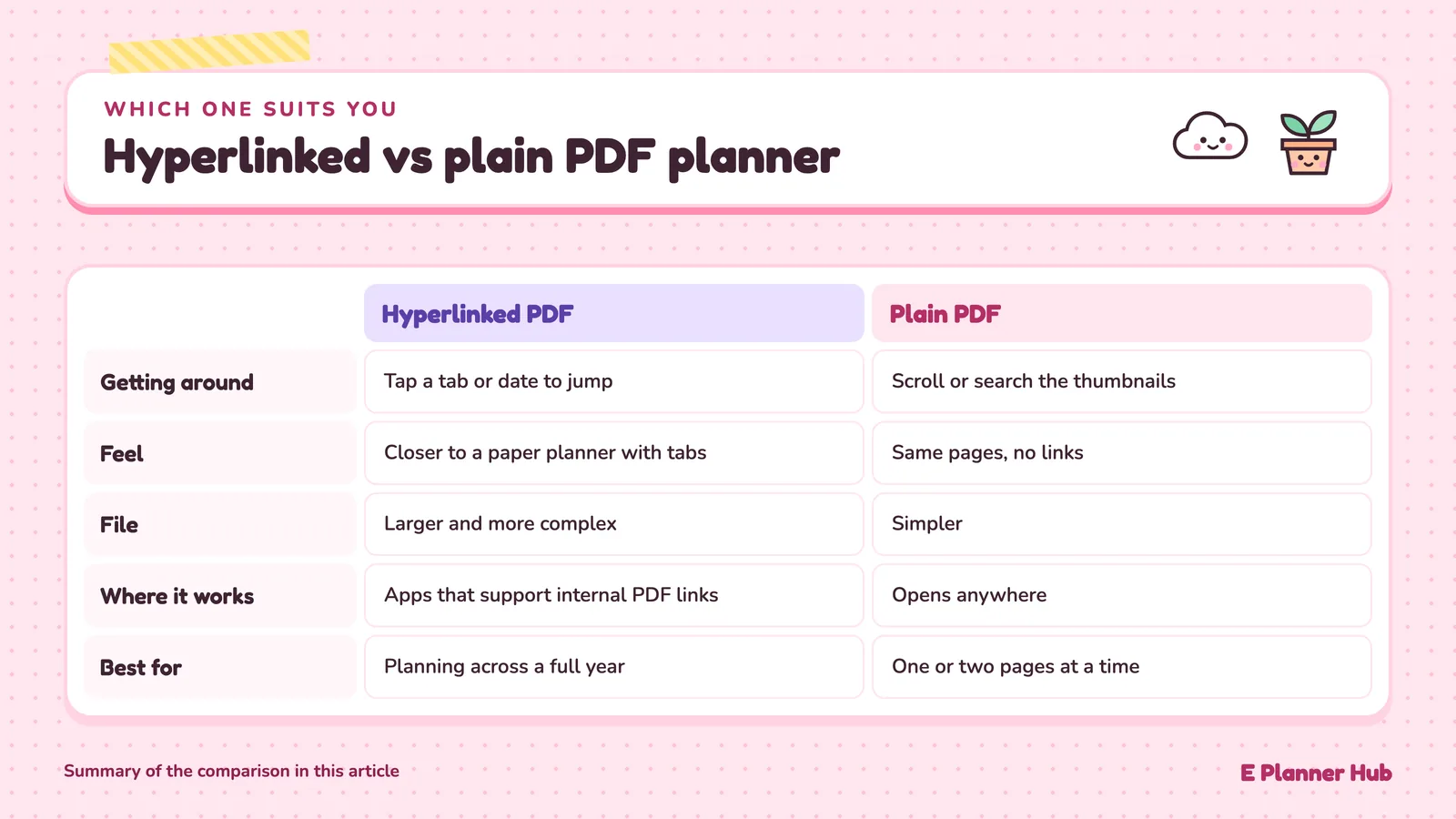
Contents ↑A hyperlinked planner is faster to move around and closer to how a paper planner feels with its tabs. It is also larger and more complex, and its links depend on your app, as shown above. A plain PDF planner with no links is simpler, opens anywhere, and suits people who only use one or two pages at a time, such as a single weekly spread they duplicate each week.
For most people planning across a full year, the links are worth it. When you are ready for a full year, our hyperlinked digital planners are built around the layered tab structure described here, and our guide on importing a planner into Goodnotes covers the checks to run after you bring one in.
Looking Ahead #
Contents ↑It is tempting to judge a planner like this by how its tabs look, but the tabs are only the visible half. The real planner is the map of links underneath, and the app that reads it. Choose the map that matches how you move through your week, and the drawing on top becomes a matter of taste.
Frequently Asked Questions #
Contents ↑Do hyperlinked planners work in every app?
No. The links only work in apps that support internal PDF links, and each app handles taps differently. Goodnotes opens them with a tap on iOS and through Read Only Mode on Android, Windows and the web, while reMarkable added internal PDF links in its 2.6 update.
Why did my planner tabs stop working after I exported it?
The planner was probably exported as a flattened PDF. In Goodnotes, a flattened export does not keep the original PDF hyperlinks, while an editable export does. Export again with the editable format to keep the tabs clickable.
Can I add my own links to a hyperlinked planner?
In some apps, yes. Goodnotes lets you link typed text to a page in the same notebook or another notebook. Links you add this way sit alongside the planner’s built-in links rather than changing them.
Are the tabs on every page really separate links?
Yes. A PDF has no physical tabs, so the designer repeats the tab artwork and its link rectangles on each page. That is why a planner with hundreds of pages can contain thousands of individual links.