Goodnotes vs Notability for Digital Planning: Which Should You Use?
 Published
Updated
On this page
- The Short Answer: Which App Fits Which Planner?
- How Each App Handles a Hyperlinked PDF Planner
- Copying Pages and Reusing Templates
- What the Free Plans Let You Do
- How Much Do Goodnotes and Notability Cost?
- Platforms and Sync: iPad, Mac, Android, Windows and Web
- Audio Recording, Class Notes and Built-In Planners
- Goodnotes vs Notability Compared Feature by Feature
- Which Should You Use? Four Common Planner Setups
- Putting It All Together
In the goodnotes vs notability choice for digital planning, Goodnotes usually suits a tab-heavy PDF planner better because its help center documents tappable PDF hyperlinks on every platform. Notability suits people who mix planning with recorded class or meeting notes. Both import PDF planners, and both have free tiers with tight limits.
Most comparisons of these two apps are written for students taking lecture notes. Planning is a different job. A planner is one large PDF with hundreds of linked pages, a set of side tabs you tap dozens of times a day, and pages you copy every week. So the questions that matter are narrower: do the tabs work, how easy is it to duplicate a weekly spread, what does the free plan allow, and will your planner follow you to a second device?
This comparison answers those questions using each developer’s own help pages and pricing pages, checked in November 2026. Where a help center does not document something, we say so instead of guessing.
The Short Answer: Which App Fits Which Planner? #
Contents ↑Pick Goodnotes if your planner is a hyperlinked PDF bought from a shop, you rely on the side tabs, and you might open it on an Android tablet or a Windows laptop later. Goodnotes publishes step-by-step instructions for opening PDF links on iOS, Android, Windows and the web, and it has a Read Only Mode built partly for this purpose.
Pick Notability if your planner lives next to class notes or meeting notes that you record audio for, or if you want cross-device sync without paying for it. Notability’s sync service, Notability Cloud, is free for all users, while Goodnotes reserves Apple-to-Android sync for its Pro plan.
If you only plan on one iPad and never record audio, either app will do the job. In that case, the deciding factors are price and how each one handles page copying, both covered below.
How Each App Handles a Hyperlinked PDF Planner #
Contents ↑A hyperlinked planner only works if the app treats the links inside the PDF as tappable.
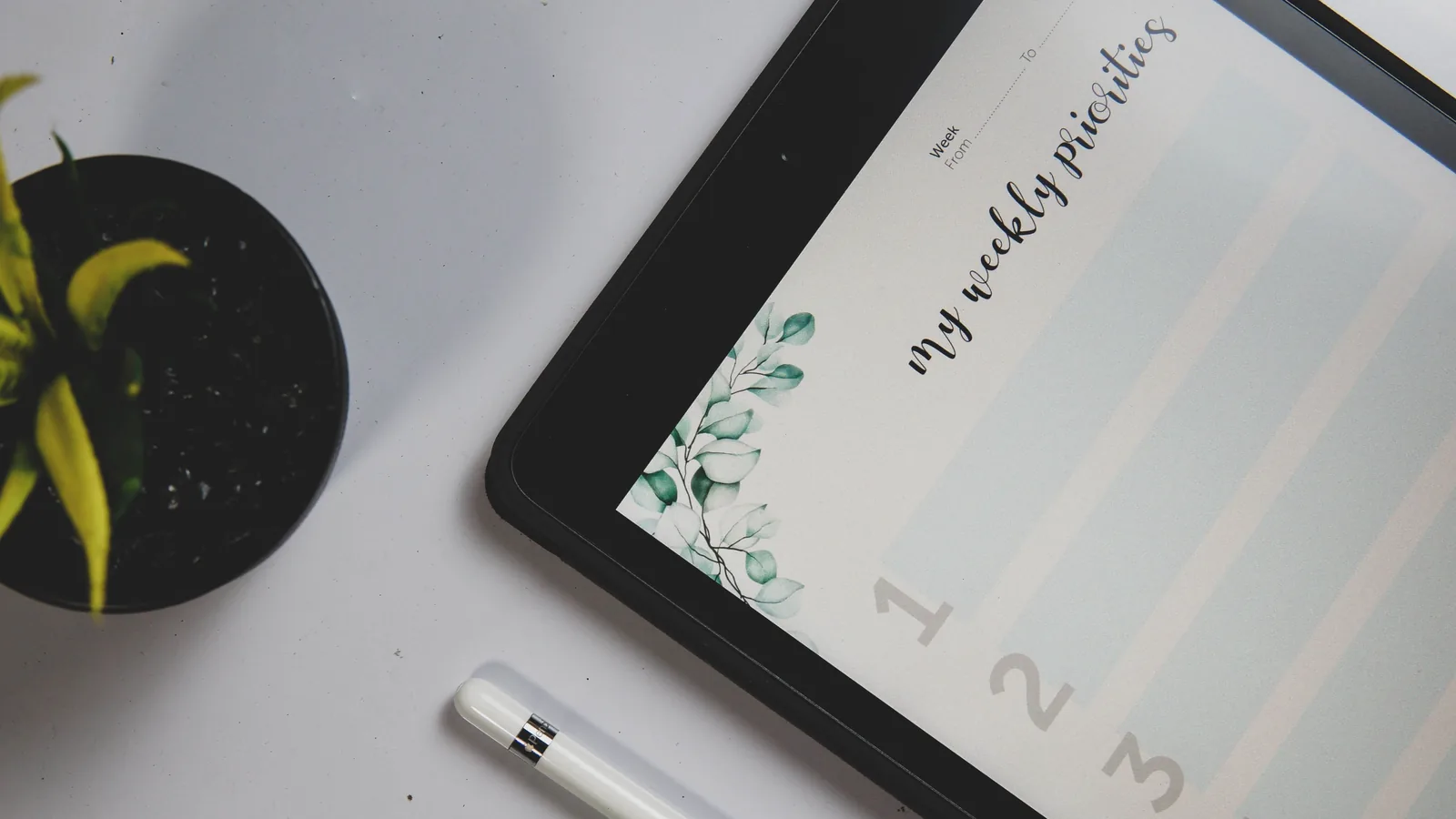
Tapping tabs in Goodnotes
Goodnotes’ help article on opening hyperlinks in imported PDFs says a link can open another page in the document or an external website, as long as the link already exists in the PDF. On iPad and iPhone you select the linked text, image or planner element. On Android, Windows and the web you enter Read Only Mode first, or in Edit Mode you press and hold the link and choose “Open Link”.
The common complaint is that tapping a tab draws a dot instead of jumping. Goodnotes addresses this directly: its Read Only Mode article says that if tapping a link draws a stroke, you should switch to Read Only Mode, where internal and external links open with one tap. You switch modes with the Read Only Mode icon in the Nav Bar, which turns white in Read Only Mode and blue in Edit Mode.
Tabs and outlines in Notability
Notability’s help center takes a different route. Its article on PDF outlines explains that when you import a PDF with a table of contents, Notability detects its headings. You open the Content Manager icon, choose Outlines, and tap a heading to jump to that section. Notability’s article on using its own digital planners also describes tapping an Index page, month tabs on the right and week numbers on the left.
What the Notability help center does not spell out is how links behave in a planner you bought somewhere else. That is not proof they fail. It means you should test before you commit a whole year to the file: import the planner, tap a month tab, a week number and a “home” link, and check that each one lands on the right page.
💡 Pro Tip
Before you start writing in a new planner, open the outline view in either app. If the PDF carries an outline, you get a second way to jump to any month even when a tab misbehaves. In Goodnotes it is the Outline tab in the Sidebar; in Notability it is Outlines in the Content Manager.
Copying Pages and Reusing Templates #
Contents ↑Planners run on repetition. You copy a blank weekly page, a habit tracker or a meeting template many times a year, so the copying workflow is worth a close look.
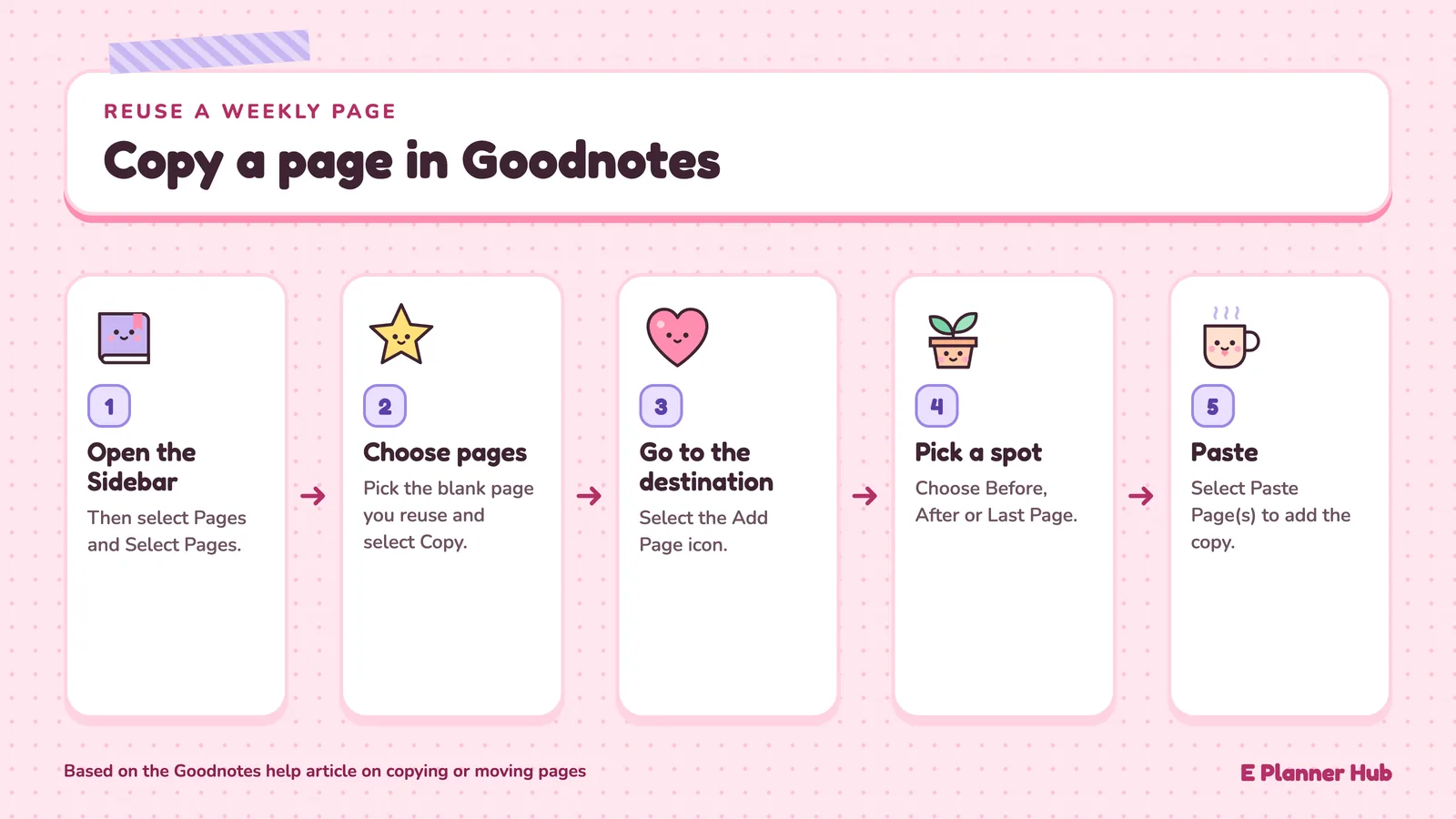
In Goodnotes, the help article on copying or moving pages describes the steps: open the Sidebar, select Pages and then Select Pages, choose the pages and select Copy. In the destination, select the Add Page icon, pick Before, After or Last Page, then select Paste Page(s). On iPad you can also open two documents side by side in Split View and drag page thumbnails between them.
In Notability, the planner article describes copying a page from the Content Manager: select the page, tap the menu icon, choose Copy, then go to the spot you want and choose Paste. The same article adds two practical notes for its built-in planners. You should copy the original template before writing on it, and you cannot paste a template directly on top of an existing page.
Both approaches work. Goodnotes gives you more ways to do the same task, which helps if you copy large batches of pages at once. Notability keeps it to one menu, which some people find easier to remember.
What the Free Plans Let You Do #
Contents ↑Both apps are free to download, and both free tiers are small enough that a full-year planner will hit their limits quickly. The difference is where the limit sits.
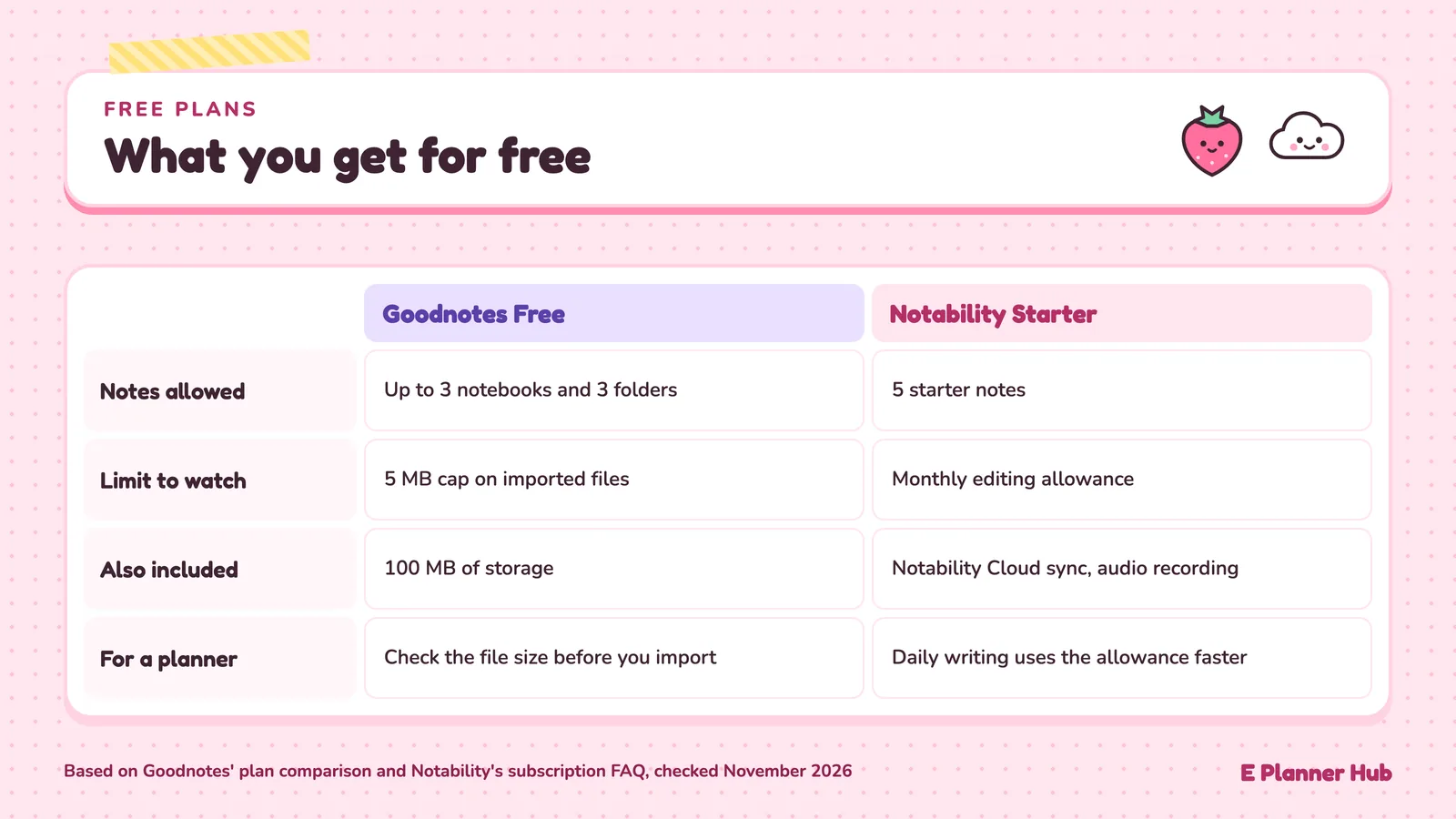
Goodnotes Free, according to Goodnotes’ plan comparison article, allows up to 3 notebooks, 3 folders and 100 MB of storage, with a 5 MB limit on imported files and watermarked exports. The 5 MB import cap matters most for planners, because a dated, fully hyperlinked planner with hundreds of pages is often larger than that. Check the file size in your Files app before you assume the free plan will open it.
Notability’s free plan is called Starter. Notability’s subscription FAQ says it includes 5 starter notes, syncing with Notability Cloud, audio recording and all editing tools, plus a monthly editing allowance. Edits are counted as changes in a session, such as handwriting, erasing or adding text. A planner you write in every day uses that allowance faster than a notebook you open once a week.
🔢 Quick Numbers
- 3 notebooks and a 5 MB import limit on Goodnotes Free (Goodnotes plan comparison, updated October 2026)
- 5 GB of storage and no import file size limit on Goodnotes Essential (same source)
- 5 starter notes on Notability’s free Starter plan (Notability subscription FAQ)
- Up to 10 devices on one paid Notability subscription (Notability subscription FAQ)
How Much Do Goodnotes and Notability Cost? #
Contents ↑As of November 2026, the Goodnotes pricing page lists Essential at $11.99 a year and Pro at $35.99 a year in US dollars, with a 7-day free trial on each. Goodnotes also sells a one-time purchase called Special Edition on Apple devices, and an optional AI Pass add-on for paid plans.
As of November 2026, the Notability pricing page lists three paid yearly plans: Lite at $14.99, Plus at $19.99 and Pro at $99.99, in US dollars. When we checked, the page was running a 20% discount that showed lower figures next to those prices. Lite adds unlimited notes; Plus adds limited AI features and audio transcription; Pro adds unlimited transcription and AI tools.
For planning alone, the entry plans are the fair comparison: Goodnotes Essential against Notability Lite. Both remove the note or notebook cap, which is what a planner user needs first. The AI features in the higher tiers are aimed at studying and meetings, not at filling in a weekly spread.
Prices and plan features are as of November 2026 and change often. Check the developer’s pricing page before you buy, because prices also vary by region and store.
Platforms and Sync: iPad, Mac, Android, Windows and Web #
Contents ↑Both apps now run well beyond the iPad. Notability’s apps page lists Mac, Windows, iPad, iPhone, Android and the web. Goodnotes lists iOS, iPadOS, Mac, Windows, Android and the web on its pricing page.
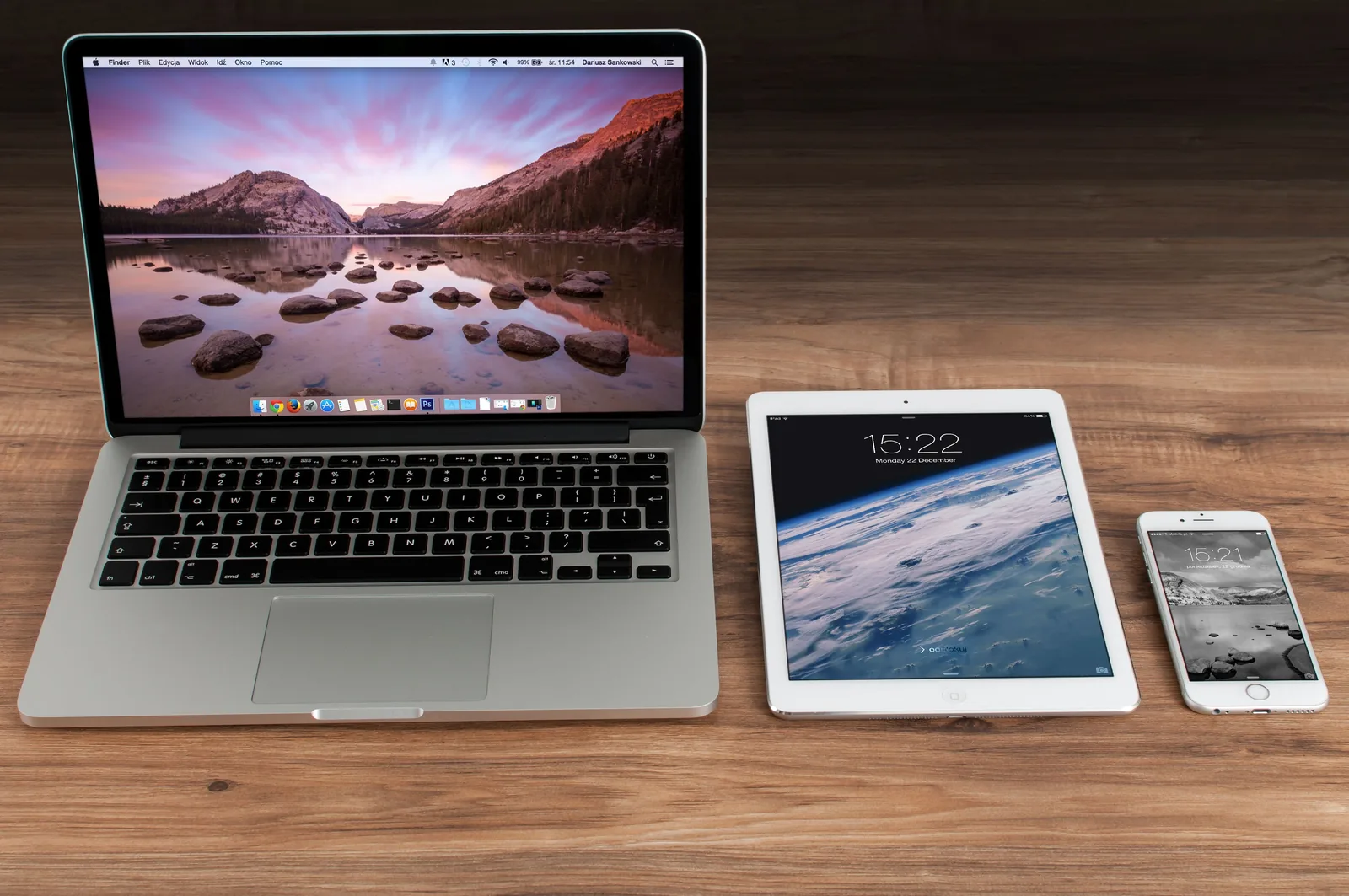
Sync is where they split. Goodnotes’ article on syncing with Goodnotes Cloud says your library syncs between Apple and non-Apple devices only with Goodnotes Cloud, which is included with Goodnotes Pro and not with Essential or Special Edition. Between your own Apple devices, iCloud Sync handles it. So an iPad planner that you also want on a Samsung tablet means the Pro plan in Goodnotes.
Notability’s Notability Cloud FAQ says the service is free for all users and keeps notes synced across iOS, Android, Mac and the web, regardless of subscription status. The Notability for Android FAQ lists Android 12L or later as the requirement and notes that comments and text-only mode were not yet available on Android.
Goodnotes has its own list of what works off Apple devices. Its FAQ on features for Android, Windows and the web confirms that hyperlinks in planners work on all three, while flashcards and exporting in the Goodnotes file format do not.
Audio Recording, Class Notes and Built-In Planners #
Contents ↑Audio is the feature people most often name when they prefer Notability. Its free Starter plan includes audio recording, and recordings made on an iPad, Mac or iPhone sync to your other devices through Notability Cloud. If your planner sits next to lectures or client calls, keeping both in one app means one library to search.
Goodnotes records audio too. Its free plan caps recording at 20 minutes per notebook, and Essential removes the cap. For a planner that holds only to-do lists and appointments, the difference rarely matters.
Each app also ships its own planner. Notability’s planner article says its 2026 planners are available to Plus users through the Templates menu. Goodnotes offers a Goodnotes Planner in its Marketplace, and its article on syncing a calendar with the Goodnotes Planner describes an experimental feature that shows your primary Google Calendar events on the planner pages. It requires Goodnotes Pro on Apple platforms, is read-only and is rolling out in phases. A planner you buy elsewhere does not get that calendar overlay.

Goodnotes vs Notability Compared Feature by Feature #
Contents ↑If you are still undecided, line the two up against the planning tasks you do every week.
Side-by-side table for planner users
The following table summarizes the differences that matter for a PDF planner, based on each developer’s own pages as of November 2026:
| Feature | Goodnotes | Notability |
|---|---|---|
| Links in imported PDFs | Documented on iOS, Android, Windows and web | Outlines documented; test tabs in third-party planners |
| Mode for tapping links safely | Read Only Mode | Not described in help center |
| Free plan limit | 3 notebooks, 5 MB imports | 5 starter notes, monthly edit allowance |
| Entry paid plan | Essential, $11.99 a year | Lite, $14.99 a year list price |
| Apple to Android sync | Pro plan only (Goodnotes Cloud) | Free on every plan (Notability Cloud) |
| Copying pages | Sidebar copy, paste or Split View drag | Content Manager copy and paste |
| Audio recording on free plan | 20 minutes per notebook | Included |
⚖️ Pros & Cons at a Glance
✔️ Pros: running your planner and your class or meeting notes in one app gives you one library to search, one subscription to manage, and audio recordings that sit next to the notes they belong to.
✖️ Cons: a planner and dozens of notebooks share the same free plan limits, a large planner competes for storage, and one sync problem affects both your schedule and your notes.
Which Should You Use? Four Common Planner Setups #
Contents ↑The goodnotes vs notability decision gets easier when you start from your own setup rather than from feature lists. Here are four situations we see often among planner users.
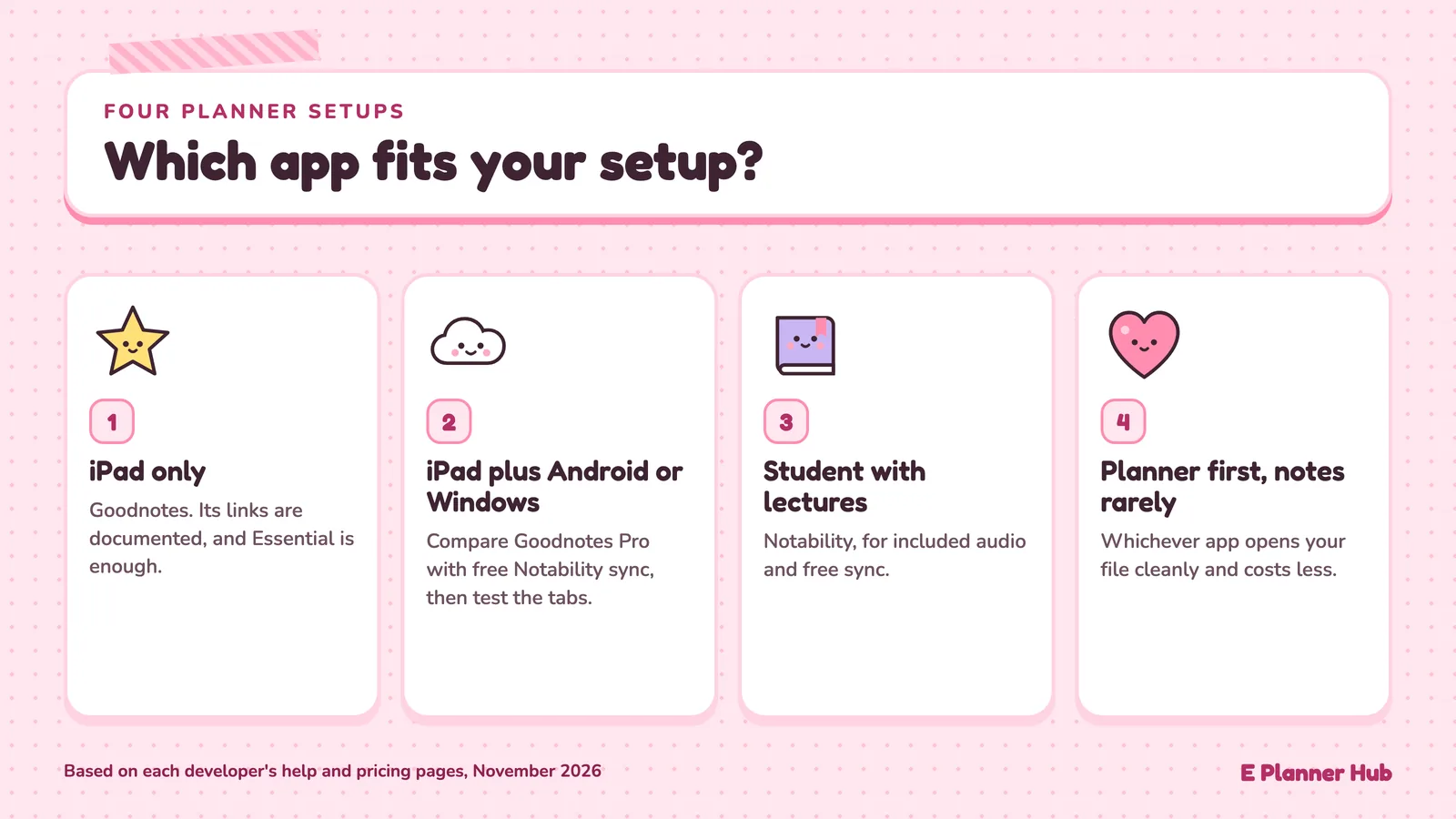
iPad only, bought a hyperlinked planner
Goodnotes is the safer starting point because its link behavior is documented and Read Only Mode gives you a fix if taps start drawing marks. Essential is enough; you do not need Pro for a single iPad. Once you choose, our guide on importing a digital planner into Goodnotes covers the first setup steps.
iPad plus an Android tablet or Windows laptop
Compare the real cost. In Goodnotes you need Pro for the same library on both. In Notability, sync is free, but you should test your planner’s tabs on each device first, since link behavior in third-party planners is not documented.
Student with lectures and a planner
Notability’s included audio recording and free sync make it attractive here. If the planner tabs test well, one app for both jobs keeps things simple.
Planner first, notes rarely
Choose whichever app opens your planner file cleanly and costs less in your region. If you have not picked a planner yet, you can browse our digital planners, which are hyperlinked PDFs that open in either app.
Putting It All Together #
Contents ↑Neither app is a planner by itself. Both are PDF note apps that a planner file lives inside, and both change their plans often, so the details above will age. What will not change is the test: import your actual planner, tap ten links, copy one week, and see how it feels on day three.
Bottom Line: For a tab-heavy PDF planner on an iPad, Goodnotes has the clearer, documented link support and a cheap entry plan. For a planner that shares space with recorded lectures or meetings across several devices, Notability’s free sync and included audio make it the better fit, as long as your planner’s tabs pass a quick test.